
Our latest WriteUpp update brings more control over how you work, with improvements to two-factor authentication, email replies, subscriptions, your Diary and client files.
We’ve also made improvements to Google Calendar syncing, which will be available very soon once Google’s verification process is complete, alongside updates across Online Booking, reporting, payments and mobile.
New Features
Keep your diary in sync with Google Calendar (COMING VERY SOON)
Important information on the Google Calendar update
The new Google Calendar improvements are not available just yet while we complete Google’s verification process for the additional calendar permissions required.
We’ll make these improvements available and notify you as soon as verification is complete.
You can now connect your Google account to WriteUpp and keep your schedule up to date across both calendars.
Once connected, new WriteUpp appointments are automatically added to your chosen Google calendar within minutes. If you update an appointment in WriteUpp, the Google event updates too, and if you delete it, it’s removed from Google Calendar.
You can also import your Google Calendar events into WriteUpp, giving you a clearer picture of your whole day in one place. Imported events appear in your diary as read-only unavailable time, helping to prevent appointments from being booked when you’re already busy. Make any changes in Google Calendar and they’ll be reflected back in WriteUpp.
Google Calendar events will usually appear in WriteUpp within a few minutes. If Google’s notification is delayed or missed, allow a further 15 minutes for the event to sync and block availability.
Each WriteUpp user can connect their own Google account and choose which of their available calendars to sync with. You can also enable a privacy filter to replace patient names with their WriteUpp ID codes in events sent to Google.
As part of this update, we’ve brought Google Calendar and Google email connections together in a new Google Authentication page. Site administrators can use the same page to connect or disconnect the Google account used to send emails from WriteUpp, as well as send a test email to make sure everything is working correctly.
To get started, go to Settings → Integrations & Add Ons, find Google Authentication, then select Configure.
The Google Calendar section is not yet available while we wait for Google to complete its verification process.
As soon as it’s available, we’ll let you know and you’ll see it here!
For step-by-step guidance, see:
-
How do I connect Google Calendar to WriteUpp?
-
How do I import events from Google Calendar into WriteUpp?
Subscription updates now move to Stripe
If you currently pay for WriteUpp through GoCardless or PayPal, you can choose to move to Stripe at any time using the Switch to Stripe banner on your Account Details page.
Now, if you haven’t already switched, the next time you select Update Subscription to make a change, such as changing your number of users or Online Booking, we’ll move your billing to Stripe as part of that update.
We’ll explain the change before taking you through to confirm your updated subscription and payment details. Your new Stripe subscription will reflect the changes you’ve chosen to make, while keeping your usual payment schedule.
Your existing GoCardless or PayPal subscription will only be cancelled once your new Stripe subscription has been successfully set up, and eligible discounts will continue to be applied.
Moving to Stripe gives you more flexibility with your WriteUpp subscription. You can add Video Consultation and AI Scribe licences, choose between our Flex, Solo and Group plans, and pay in your own currency where available.
Current time indicator in the Diary
We’ve added a red ‘Current time’ line to the Diary’s day and week views, making it easier to see where you are in the day at a glance.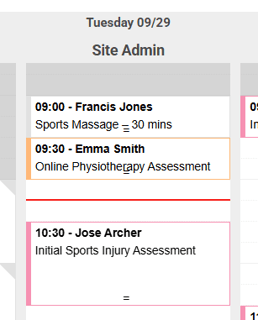
The line uses your site’s configured timezone and updates automatically as time passes.
You can turn the indicator off for your own account from the main menu → Settings → My Settings using the new ‘Show current time marker’ setting.
Improvements
Choose where replies to WriteUpp emails are sent
You can now choose whether replies to emails sent through WriteUpp’s default email service go to your organisation email address or directly to the email address of the user who sent the message.
Site Administrators can manage this under Settings → General using the new 'Replies to sender' setting.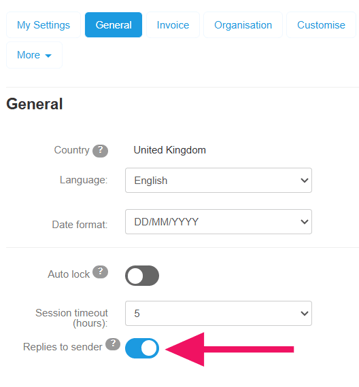
By default, replies will continue to go to your organisation email address. If you turn the setting on, replies to supported client emails, including emails containing forms, direct messages, and appointment communications, will instead go to the relevant user’s email address.
Note: This setting changes where the recipient’s reply is sent; it does not save incoming replies back into WriteUpp.
Filter files by type
We’ve added a new ‘Filter by Type’ option to the Files tab of the Client Summary, making it easier to find specific documents, attachments and links when a client has lots of files.
The filter works alongside ‘Filter by Episode’ and only shows file types that are available for that client and episode, including customised attachment and link types.
You can now also click the column headings on the Files tab of the Patient Summary to sort files by the selected column.
A simpler 2FA setup
We’ve updated the way two-factor authentication (2FA) is set up when you activate it on your WriteUpp site.
When 2FA is switched on, email verification is now the first method used. The next time each user signs in, we’ll send a verification code to their email address. Once they enter the code successfully, 2FA will be active for their account.
Any new users invited to the site will follow the same process the next time they sign in.
Afterwards, users can go to Settings → My Settings → Configure Two-Factor Authentication to set up an authenticator app and/or SMS verification, if available, as alternative ways to complete 2FA.
Already using 2FA? You don’t need to do anything - these changes are designed for sites activating 2FA from now on.
Heads up! Mandatory 2FA is coming for all WriteUpp users, so we recommend getting ahead of the change and activating it for your site now.
Choose whether to receive automatic 2FA emails
If you use two-factor authentication (2FA), you can now choose whether WriteUpp automatically emails you a verification code each time you’re asked to sign in with 2FA.
Automatic emails remain switched on by default, but users can now turn them off if they prefer to avoid unnecessary emails.
You can manage this setting from Settings → My Settings → Configure Two-Factor Authentication.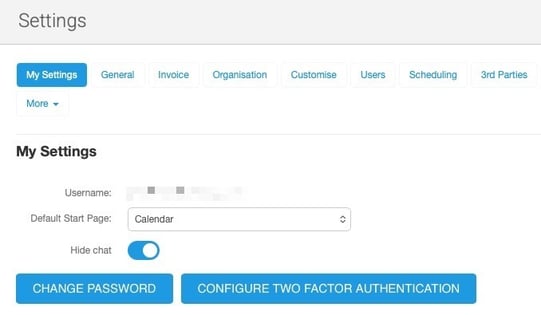
Even with automatic emails switched off, you can still select Send by email on the 2FA screen whenever you need a code sent to your verified email address. Your authenticator app will also continue to work as normal.
This preference is managed separately for each user on a site under My Settings.
Online Booking notifications for non-clinical users
We’ve improved Online Booking notifications so non-clinical users, such as reception or administrative staff, can now receive an email whenever an Online Booking is made with any clinical user in their practice.
The ‘Notify of online booking made with any user’ setting is now available on non-clinical user profiles. This makes it easier for admin teams to keep track of new bookings across the practice.
Responsible users now shown by name across client lists and reports
We’ve improved how Responsible Users are displayed across client lists, custom lists, recall lists and caseload reports.
Where multiple individual users are responsible for a client, you’ll now see each user’s name listed rather than a summary such as “2 users”. This also applies when exporting these lists and reports, making it easier to see exactly who is responsible for each client.
If a User Group is assigned as responsible, the group name will continue to be shown instead.
Clinician Appointment Costs report - invoice and payment details
We’ve improved the Clinician Appointment Costs report under Finance to make financial checking and reconciliation easier.
The report now includes:
- Invoice Number - see the invoice linked to each appointment and select the number to open the relevant invoice.
- Paid Date - see the date the associated invoice was fully paid.
If an appointment does not have an invoice, or the invoice has not yet been fully paid, the relevant field is left blank.
These details are also included when exporting the report.
New date format setting
You can now choose whether dates in WriteUpp are displayed as DD/MM/YYYY or MM/DD/YYYY.
The new Date format setting can be found under Settings → General and is applied across supported areas of WriteUpp, including Appointment Search and Online Booking.
New WriteUpp sites created in the US will automatically use MM/DD/YYYY by default, while existing sites can choose the format that works best for them.
Improved appointment screen on mobile
We’ve improved the appointment screen when viewing an appointment from the diary on a mobile device.
Smaller fields such as From, To and Status now display more clearly on separate lines, making appointment details easier to read and use on smaller screens.
Clearer confirmation when saving settings
You’ll now see a confirmation message after successfully saving changes in My Settings, General, Invoice → Basics and Invoice → Layout, making it clearer that your updates have been saved.
Trigger website actions after an Online Booking is completed
If you embed Online Booking 2.0 on your own website, your website can now detect when someone has successfully completed a booking.
This can be used to trigger actions on your website, such as redirecting the person to a thank you page, showing follow-up content or recording a conversion in your analytics platform.
The completion message contains no patient, booking, appointment, payment or price information, helping keep the integration privacy-safe.
There’s no change to the normal Online Booking experience for customers who don’t use an embedded booking page.
Clinician working hours now available through the Open API
The Open API can now return site-scoped clinician working hours and diary configuration for active clinicians.
Prevent duplicate invoices after successful Tap to Pay payments
We’ve improved Tap to Pay to prevent duplicate invoices if a successful card payment needs to be processed again.
If the payment has been taken but the invoice is still being recorded, WriteUpp will now show Payment taken and advise you not to retry the card payment.
Bug Fixes
-
We’ve fixed an issue where using Direct Message in multiple browser tabs could cause the recipient list, message or client details to switch to a different client opened in another tab. An open Direct Message workflow will now keep its own client context, so recipients, contact details and template merge fields remain linked to the client you originally opened it for, even if you view another client in a separate tab.
- We’ve improved invoice loading to make invoices with large logos open more quickly and remain responsive.
- We’ve fixed an issue that prevented authorised non-Site Admin users, including Privileged Users, from merging duplicate patient records. Users with access to both patient records can now start and submit a merge request as before.
- Changes made to a client’s Next of Kin (NOK) details will now also be saved when you select ‘Save changes’ at the bottom of the client tab. This means NOK updates won’t be lost if you forget to use the separate Save button within the NOK section. The existing NOK Save button and validation remain unchanged.
- We’ve fixed an issue that would prevent Direct Messages, including Smart Forms, from being sent when your standard SMS credit balance was zero even if you still had subscription credits available. If you still have SMS credits included with your subscription, WriteUpp will now recognise these and allow the message to be sent as expected.
- We’ve added validation to third-party custom fields to prevent field names longer than 50 characters from being saved. This helps ensure Patient Profiles containing third-party information save successfully and avoids validation errors caused by overly long field names.
- We’ve fixed an issue where completing a task from the notification panel didn’t mark the task as complete or remove the notification. Completed tasks should now update correctly and disappear from the list as expected.
- We’ve fixed an issue where opening notifications in Desktop could leave the panel stuck on Loading…. Notifications should now open correctly and display any active items as expected.
- We’ve fixed an issue where deleting a patient would fail if they were assigned to a responsible user group.
- We’ve updated ‘Appointment Type’ to ‘Appointment Type(s)’ when creating or editing discount codes, making it clearer that multiple appointment types can be selected.
- We’ve improved the Video Consultation waiting room experience on iPhone Safari. The portrait camera preview and its controls now fit more neatly within the available screen space, so they’re no longer obscured by Safari’s bottom toolbar.
- Fixed an issue where changing an Online Booking 2.0 booking limit could cause available appointments to stop showing before the configured limit. Availability will now rebuild correctly through the full booking window, even where older cached availability exists.
- We’ve improved how WriteUpp Pay handles expired or invalid login sessions. If a session expires, users will now be returned to the login screen instead of incorrectly seeing No Appointments Yet.