
This example guide will walk through a more complex outcome measure set up.
It will cover:
-
Creating a new group for outcome measures
-
Adding 3 individual trackable measures
-
Building a form that contains the ED-15 questions with a numeric score attributed to each choice for each question
-
Tracks all 3 of those measures, with calculations that result in an average score to 2 decimal places.
1. When creating an outcome measure, the first step is to identify the form to be recreated, and the actual outcome(s) that should be tracked. This example uses the ED-15 questionnaire, and the version linked as our template. Don't start creating the form yet, the first step is to create the actual outcome(s) that you want to be able to track 👇
You'll need to be a site administrator to create a trackable outcome measure
2. Open the main WriteUpp menu and choose Fields -> Outcome Measures
3. If you don't already have any groups set up, click on Add Group:
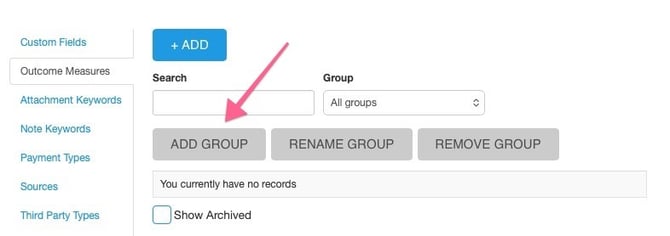
Groups provide a way to categorise your outcome measures once they've been completed for a patient. You can view either all outcome measures or pick a group to view. For example, if you use both the ED-15 and ED-15-Y forms, you might set up a Group called ED-15 Scores
3. Once you have a Group to use, click on +Add to create the measure that you want to track.
4. Identify what you want to be able to track based on the form you intend to build. Based on the ED-15 questionnaire, there are 3 trackable measures possible; 2 sub-scale scores and a total score. To be able to track all 3 of those, we therefore need to create 3 outcome measures, each named to reflect what it's going to show us. For the ED-15, those are:
- Weight/Shape concerns
- Eating concerns
- Total/Overall score
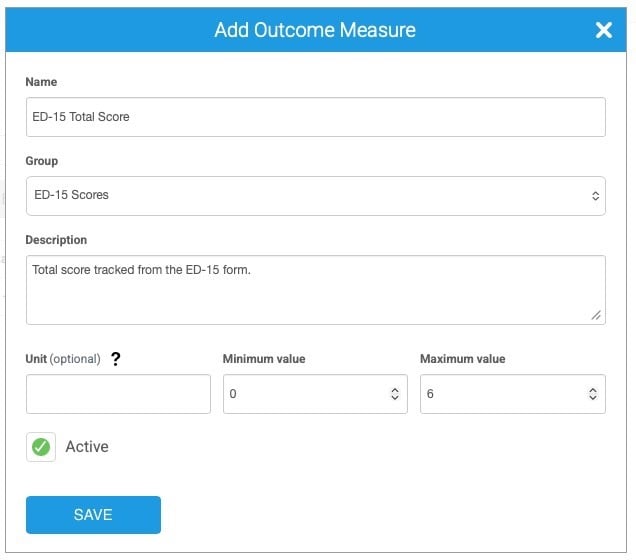
5. When adding a measure:
- Name - Enter the name of the outcome measure you are tracking
- Group - Choose the group it should be contained in
- Description - Enter a brief optional description
- Unit (optional) - If you'd like to associate a unit of measurement to the outcome, you can do that here.
- Minimum and Maximum values - What is the expected range of the score? The ED-15 is scored by assigning values from 0 to 6 to 10 items, which are then averaged, so the range entered is minimum = 0 and maximum = 6. Entering the values here helps to ensure the calculated score is correct, and that the chart on a client record displays the correct range.
Then Save:
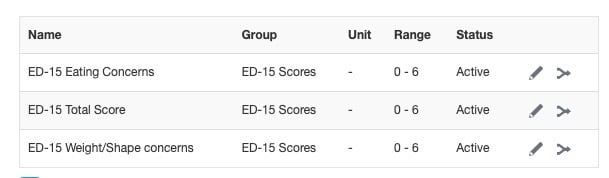
6. Repeat these steps to add any other measures you'd like to track. In this example, there are now 3 trackable outcome measures that can be attached to a field in a form template:
7. Next, a form template needs to be built to contain the questions and the outcome measure calculation. Head to Settings -> Assessments and choose Create Assessment Form.
Again, you need to be a Site Administrator to create form templates
8. When building new forms in WriteUpp, there are a couple of tools available to help you.
- Tools -> Form import. This allows you to import forms into WriteUpp from either PDF or image files. This will create the best possible version of your form, in the WriteUpp format. It's not guaranteed to be perfect each time but it should save time vs creating forms manually.
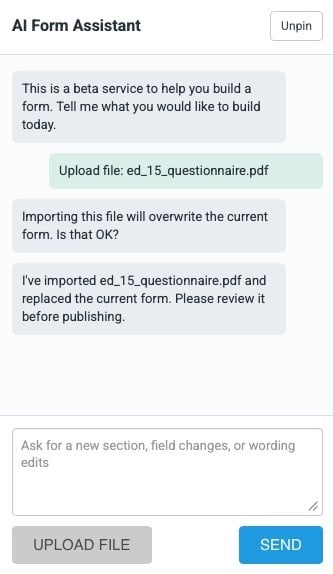
- Form Builder -> AI assistant. When working in the form builder, you can use the AI assistant to either help edit an existing form, or recreate a single form at a time (This is still a beta service but is a great starting position for creating new forms, and helpful for making changes if you've imported a form and need to make some tweaks).
9. A guide to starting with the form builder can be found here, if you need any help getting to grips with the different field types and formats available.
10. When creating forms to use as outcome measures, the questions that result in the score you'd like to track should be created using the Numeric field:
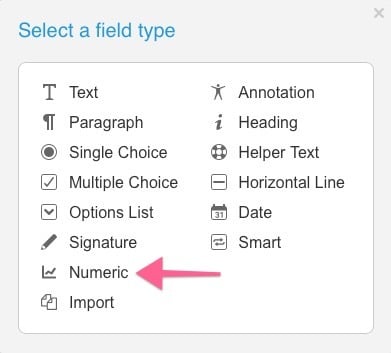
11. For example, the Total Score of the ED-15 questionnaire is calculated from the average of 10 answers. When adding all 10 of those questions to the form, choose Numeric from the available field types.
12. When adding a numeric field:
- Field name - Enter the question to be asked, for example "1 Worried about losing control over my eating"
- Mandatory - Choose whether it should be mandatory
- Number format -
- Whole numbers: Will accept whole number eg 1, 2, 3
- Decimals: Will accept a number to 2 decimal places eg 2.35
- Attached outcome measure - If the field is to be used to track one of your outcome measures, choose it here. When adding the questions to be answers, an outcome measure does not need to be attached. In this example question, an outcome measure does not need to be attached.
- Value input -
- Number field: Will allow a number to be entered as a whole number or a decimal, based on the above number format
- Single choice with numeric score: Will allow single choice text options to be entered, each with a corresponding numeric score. For example, the ED-15 questions are presented with labels ranging from Not at all to All the time, which have a corresponding value of between 0 and 6.
Not at all - 0
Rarely - 1
Occasionally - 2
Sometimes - 3
Often - 4
Most of the time - 5
All the time - 6
Using this field type, we can present the questions as a single choice, and assign them a score which is used in the calculations.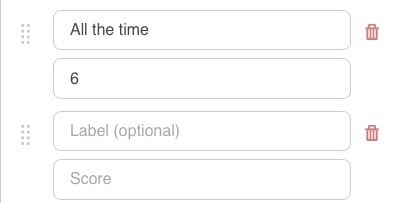
- Field layout - Choose whether to display single choice fields horizontally or vertically. A matter of personal preference!
13. Repeat the steps to add each question to the form, and to format it correctly. Remember when building a form, you can switch to Preview at the top of the screen to see how it will look when completing it.
14. Once all the questions are in place, Numeric fields can then be added to the form to calculate and capture the outcome measures set up in Steps 4 and 5.
15. Firstly for the ED-15 questionnaire, add Numeric fields to calculate the scores for the 2 sub-scores; weight/shape concerns and eating concerns, which are already set up as outcome measures.
16. To add an outcome measure field with a calculation:
- Field Type - Numeric
- Field Name - The outcome measure being tracked eg Weight/Shape concerns
- Mandatory - Is the score mandatory? It's a good idea to make questions that you're going to use in calculations mandatory, as excluding them could skew your results if no value is found.
- Number format - Do you expect a whole number or a number to 2 decimals places? For example, when calculating an average, a decimal number is probably more likely
- Attached outcome measure - What measure does this field calculate? In this example, ED-15 Weight/Shape concerns.
- Value input - To be able to use a calculation for an outcome measure, leave the value input as Number field
- Calculation - How is the score to be calculated? Calculations use the Field names entered on your form. As the example shows, you might enter (@Field 1 + @Field 2)/Field 3.
17. To enter a calculation, use @ in the calculation field to show a list of the field options to select from:
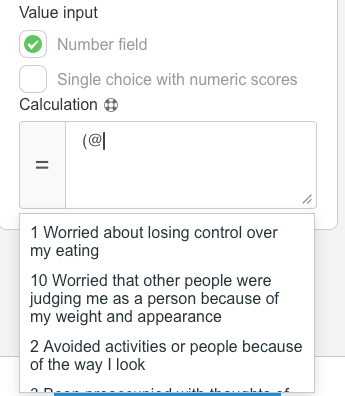
Then use these values to build the complete calculation.
In the ED-15, the weight/shape concerns sub-score is calculated from the average of fields 2, 4, 5, 6, 7, and 9.
Therefore the calculation entered is:
(@2 Avoided activities or people because of the way I look + @4 Compared my body negatively with others + @5 Avoided looking at my body eg in mirrors or wearing baggy clothes because of the way it makes me feel + @6 Felt distressed about my weight + @7 Checked my body to reassure myself about my appearance eg weighing myself or using mirrors + @9 Felt distressed about my body shape)/6
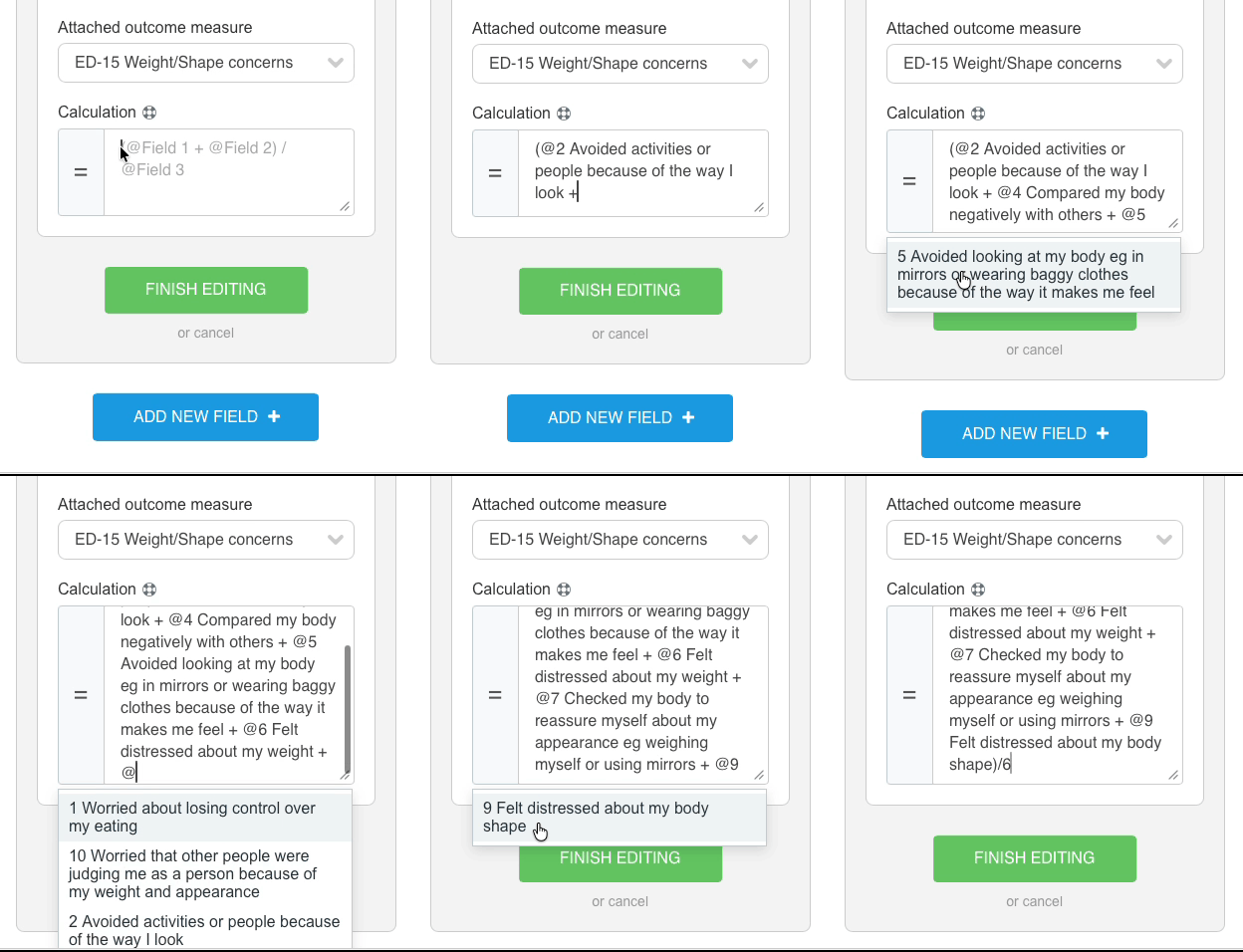
Which give us this:
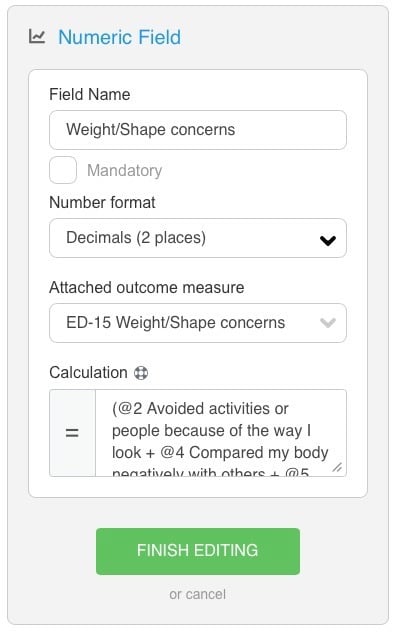
18. To add another outcome measure to the same form, add another numeric field, making sure to select relevant outcome measure under Attached outcome measure and using the correct calculation.
For example, the other sub-score on the ED-15 questionnaire is for eating concern and is the average of fields 1, 3, 8, and 10, so the calculation is:
(@1 Worried about losing control over my eating + @3 Been preoccupied with thoughts of food and eating + @8 Followed strict rules about my eating + @10 Worried that other people were judging me as a person because of my weight and appearance)/4
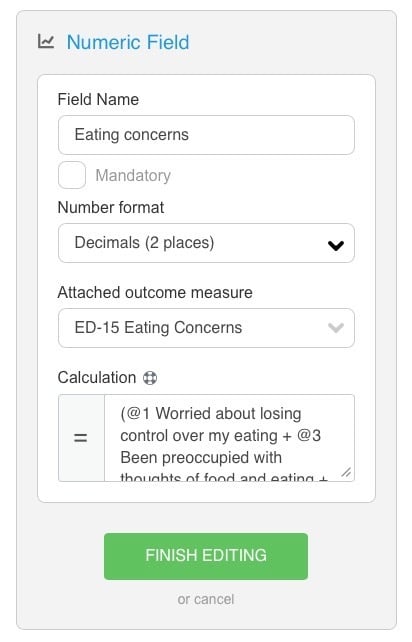
19. Finally, the total score on the ED-15 questionnaire is calculated from the average of all 10 attitudinal items:
(@1 Worried about losing control over my eating + @2 Avoided activities or people because of the way I look + @3 Been preoccupied with thoughts of food and eating + @4 Compared my body negatively with others + @5 Avoided looking at my body eg in mirrors or wearing baggy clothes because of the way it makes me feel + @6 Felt distressed about my weight + @7 Checked my body to reassure myself about my appearance eg weighing myself or using mirrors + @8 Followed strict rules about my eating + @9 Felt distressed about my body shape + @10 Worried that other people were judging me as a person because of my weight and appearance)/10
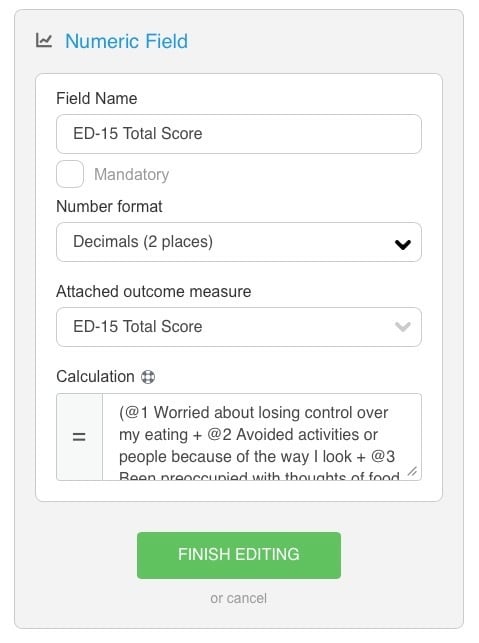
20. The form now contains all the questions that need to be asked, and the fields and calculations to result in trackable outcome measures once used with a client.
21. Make sure to hit Finish editing when you complete a field, and Publish and Exit before leaving a form, so you can see it and use it with your clients.
22. To complete a form containing outcome measures with a client, go to Create -> Form/Assessment and search for or find it on the list.
23. Numeric fields that are linked to outcome measures eg the 3 ED-15 measures created and added above, are not editable when completing a form:
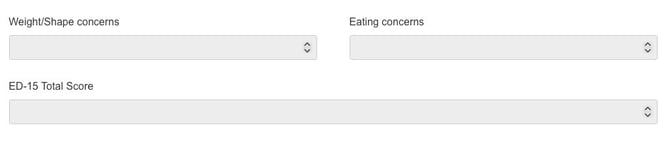
but as the questions are completed, will populate as your calculations define:
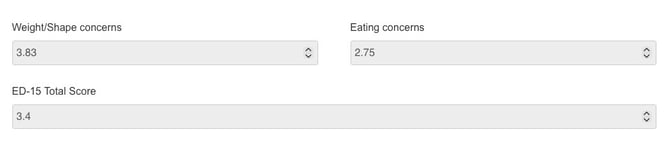
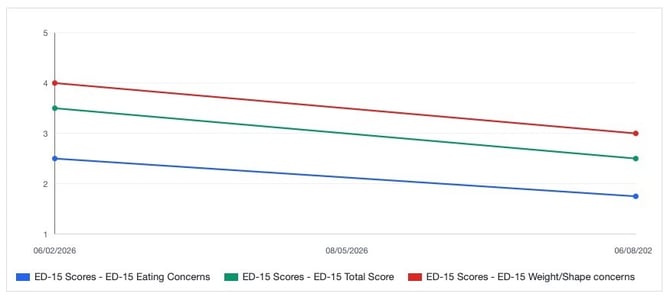
24. Once forms are saved, the Outcome Measures tab of the client summary can be used to view results plotted on a graph or in a table. If the form is repeated at a later date, new points will be plotted against the date, allowing progress to be easily viewed over time.
25. Historic figures can also be manually added, so if you have the results of the same questionnaire in another format eg on paper, click on Add Value at the bottom right.
26. We hope this helps. Happy measuring and please get in touch with support if you have any questions we can help with!