
Once you’ve created your Appointment Categories, you can assign appointment types to them to keep everything neatly organised.
You can also add a category when you’re creating or editing an appointment type. Read on to learn how.
Assigning an Appointment Type to a Category
1. Go to Settings → Scheduling → Appointment Types
2. Add a new appointment type, or click an existing type to edit
3. You’ll see an Appointment Category dropdown above the ISC field. Open it:
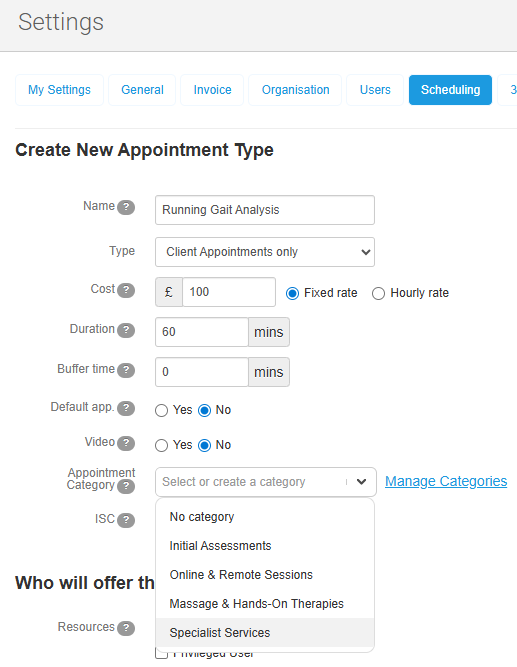
4. Choose from your existing list of categories, or type a new category into the field and hit Enter
If you enter a new category here, it will be saved and added to your list under Fields → Appointment Categories.
An appointment type can belong to one category only.
Where Categories Appear
Once an appointment type has a category, it will appear grouped:
- In the Type dropdown of the appointment modal
- In the Type dropdown under Create → Appointment
- In Online Booking 2.0, on a new ‘Appointment Category’ homepage.
WriteUpp uses your category order (set under Fields) to decide how they display.
Related articles: