
Appointment Categories group your related appointment types under a single label, such as Initial Assessments, Follow-Ups, or Online Sessions. They make your services easier to navigate for both you and your clients across WriteUpp and Online Booking 2.0.
Creating a New Appointment Category
1. Go to the Main Menu → Fields → Appointment Categories. Here you’ll see a list of all categories you’ve created.
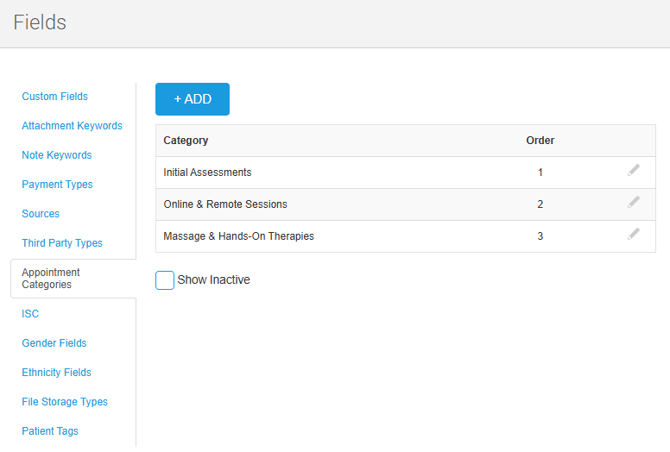
2. To add a new category, click + Add
3. A modal titled ‘Add Appointment Category’ will open:
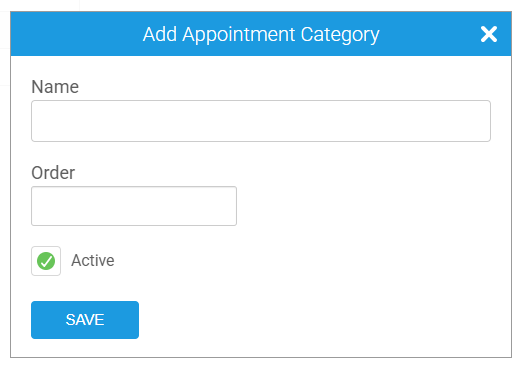
4. Complete the fields:
Name - the name of your category
Order - controls where the category appears in lists:
- Ordered categories appear first
- Categories with the same order number are listed alphabetically
- Categories without an order number appear last, alphabetically
Active checkbox - active by default
5. Click SaveCreating a New Category While Editing a Type
You can also add a category when editing or creating a new Appointment Type under Scheduling, without going back to Fields.
To create one on the fly:
1. On the Create/Edit Appointment Type screen, click into the Appointment Category field
2. Start typing a new category name
3. Press Enter, or click 'Create Category'
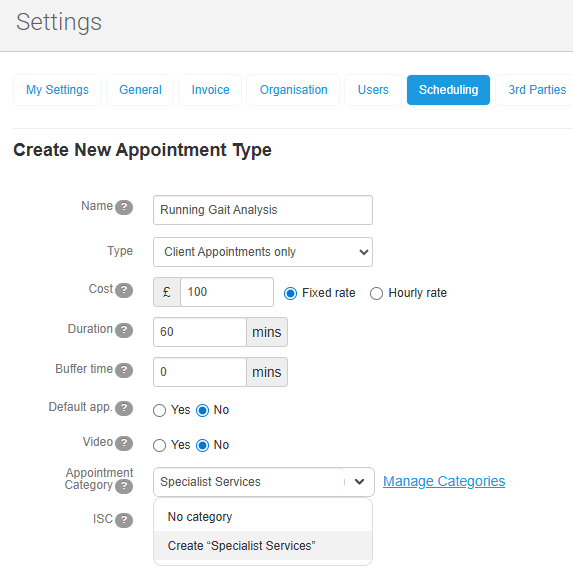
4. The new category will be created and added to your list under Fields → Appointment Categories
You can remove it before saving, but you can’t assign more than one category to the same type.
Editing an Appointment Category
To edit an existing category:
1. Under the Main Menu → Fields → Appointment Categories, click the Pencil icon beside the category2. A modal titled ‘Edit Appointment Category’ will open
3. Update the name, order, or active status
4. Click Save
What Happens When a Category Is Deactivated?
- It no longer appears in dropdowns or booking screens
- Any appointment types previously assigned to it become uncategorised
Viewing Inactive Categories
To see categories you’ve previously deactivated, tick Show Inactive under the table. Inactive categories won’t appear anywhere else in WriteUpp.
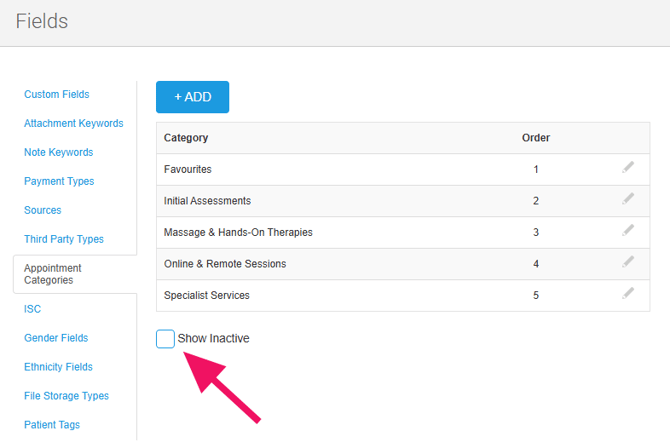
To reactivate a category, edit it and tick the 'Active' checkbox.
Related articles: