
Site Administrators can choose which tabs appear on the Client Record and arrange them in an order that works best for their practice.
These settings are shared across your site, so any changes you make will apply to all users.
Only Site Administrators can access these customisation settings.
Customise your Client Record tabs
To change the tabs shown:
- Go to Main Menu → Settings
- Select the Customise tab:
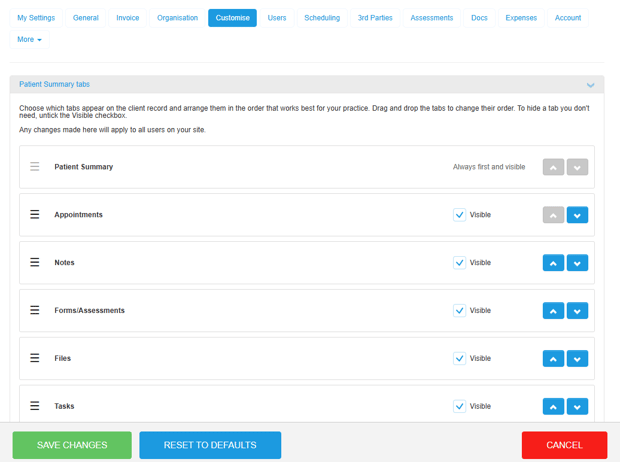
- Drag and drop the Client Record tabs into your preferred order using the three horizontal lines on the left of each slot. Alternatively, use the arrows to move tabs up or down.
- Use the Visible checkbox beside each tab to choose whether it should be shown or hidden.
- Save your changes.
The Patient tab must always remain visible and appear first, so it cannot be hidden or moved.
The updated tabs and their new order will appear the next time a Client Record is loaded!
Existing user permissions and feature settings still apply. Users will only be able to access information they are authorised to view.