
Yes, just follow the steps below:
Classic Online Booking
1. Login to the Online Booking Admin Area
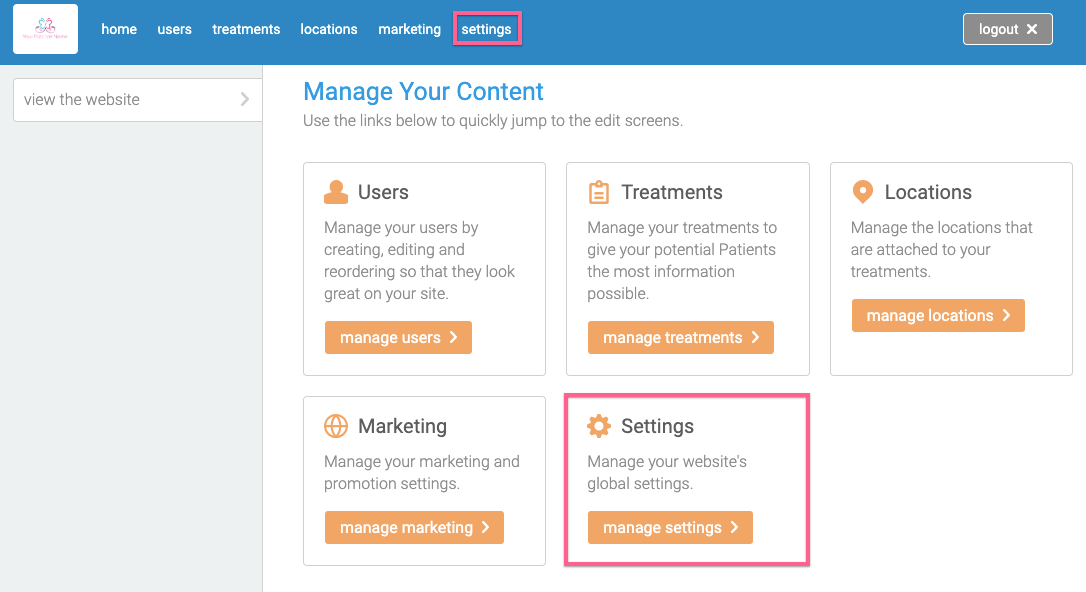
2. Go to Settings either in the menu bar at the top or from the quick navigation block at the bottom of the page:
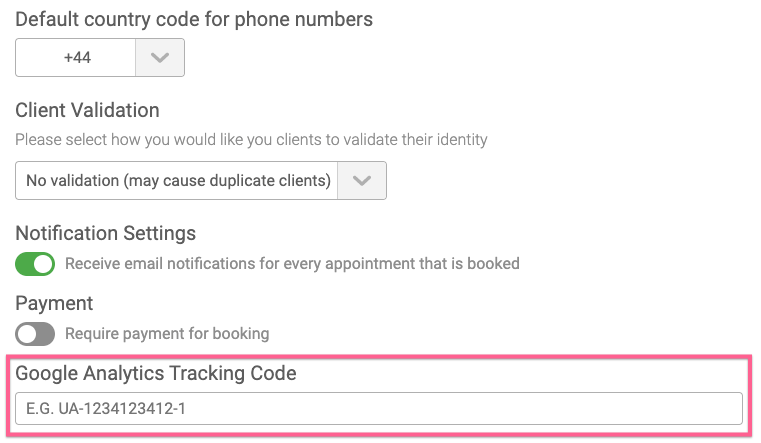
3. Scroll to the bottom of the page and add your Google Analytics tracking code:
4. When you're done, click on Save & Publish.
Both Universal Analytics codes (prefixed with "UA-") and Google Analytics 4 codes (prefixed with "G-") are supported in this field. Universal Analytics will stop processing data on 1st July 2023. If you need help with Analytics, you can access Analytics help here.
Online Booking 2.0
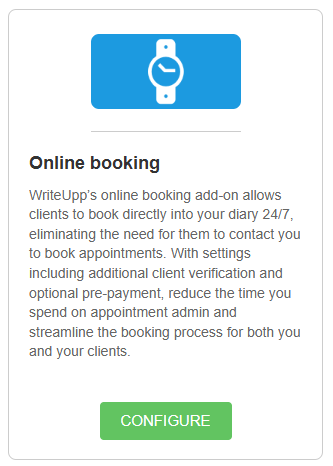
1. In WriteUpp, go to Integrations & Add Ons → Online Booking → Configure:
2. Scroll down the page to the Google Analytics Tracking field and enter your code: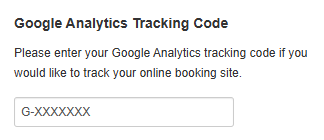
Tracking Online Booking 2.0 Page Views in Google Analytics (GA4)
Online Booking 2.0 uses a single-page application, which means page changes don’t always trigger standard page view events in Google Analytics by default. To ensure booking steps (including the completion page) are tracked correctly, you may need to update your GA4 settings.
Enable browser history page tracking
First, make sure Enhanced Measurement is correctly configured in GA4:
1. Open Google Analytics (GA4).
2. Go to Admin → Data Streams.
3. Select your Web data stream.
4. Under Enhanced measurement, click the settings icon.
5. Ensure “Page changes based on browser history events” is enabled.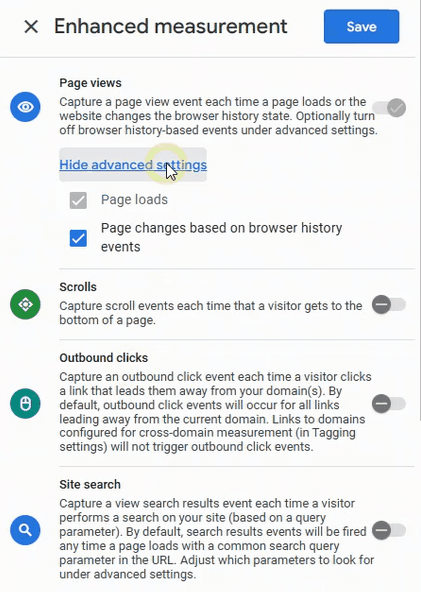
6. Save your changes.
Once enabled, GA4 should start recording page views as users move through the Online Booking flow, even though the page doesn’t fully reload.
Tracking booking completion using a regular expression
If you want to track a specific step in the booking journey (such as successful booking completion), you can use a regular expression when creating a custom event or filter.
For example, if your booking completion URL follows this structure:
/booking/{unique-id}/complete
You can use the following regular expression:
^/booking/[\w\d]*/complete$
This matches:
- Any booking URL
- With a unique booking reference
- Ending specifically on the complete page
You can use this regex when creating an event in Google Analytics. To do this:
1. Go to Data display -> Events -> Create event
2. Enter an event name
3. Scroll down to the 'Create without code' section and click View more options:
4. Change the Operator dropdown to 'matches regular expression'
5. In the Value field next to it, enter the regular expression

6. Click Save
7. Then, click Create for the event.
This helps ensure only completed bookings are tracked, rather than every step of the booking journey.
The event could take a little while before it shows.
Please note: While we’re happy to explain how Online Booking 2.0 behaves and what can be tracked, the WriteUpp Support team is unable to assist with the setup or configuration of Google Analytics itself. For help with Google Analytics settings, events, or reports, we recommend contacting a Google Analytics specialist or referring to Google’s own documentation.