
When building a form using the Form Builder, you can use an 'Annotation' field to add a diagram, which can then be annotated.
To add an annotation to an assessment form, follow the steps below:
1. Select the layout of your form, then click the Add New Field + button. From here, select the Annotation field type: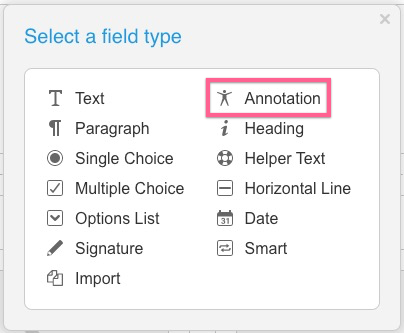
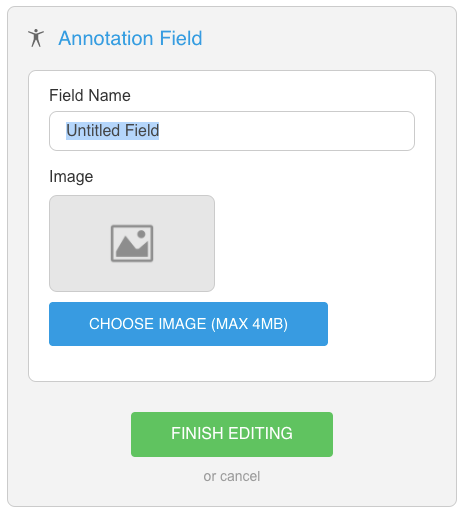
You can only add images of less than 4MB in size as an annotation.
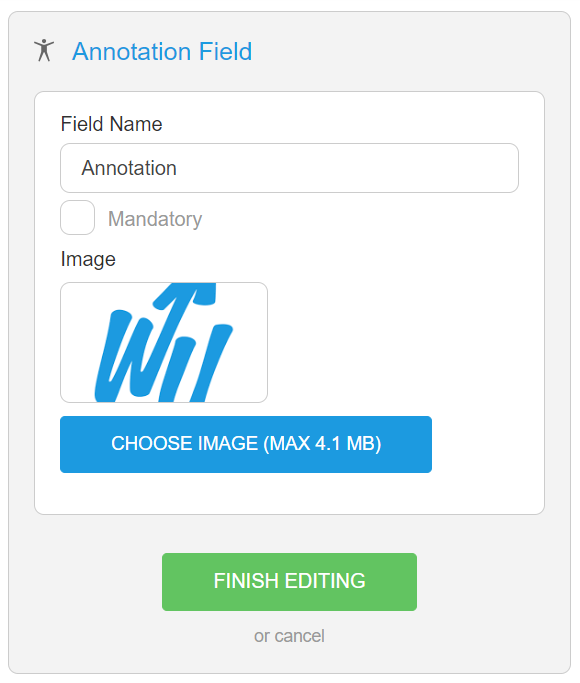
4. When you have finished creating or editing the assesment, click Publish & Exit
5. You can now use this form and annotate the diagram from within WriteUpp, or send it out to a client as a smart form for them to complete.