
In WriteUpp, you can choose to add your own text fields to the Client Summary.
These text fields hold up to 250 characters each!
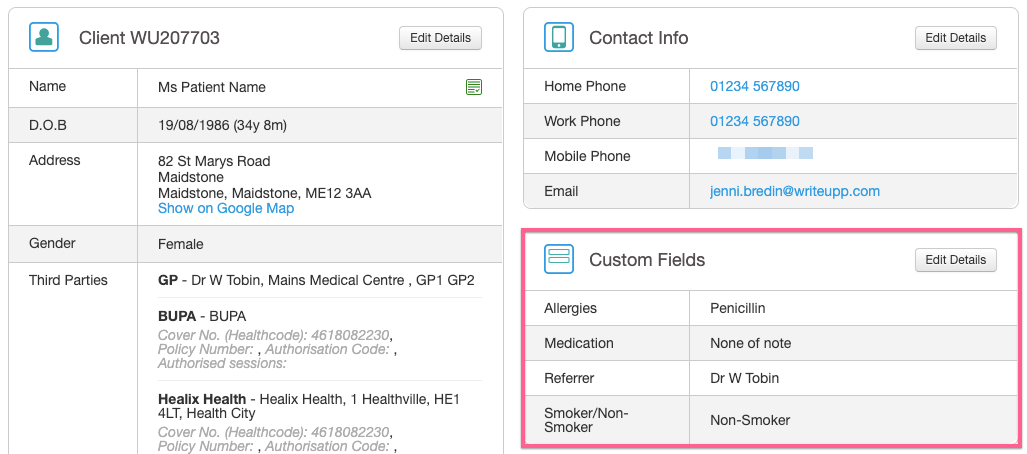
To add custom fields:
1. Open the main menu at the top left, then select Fields from the Settings and Tools section.
2. Within the Custom Fields tab, you'll see a list of the custom fields you have set up. You will find the option to Edit them at the end of each row. The blue 'Add' button above the list allows you to create more fields.
When creating or editing custom fields, you can use the Order field to control how they appear on the Patient Summary. Fields with a lower order number will be displayed higher in the list.
You can also choose to view any deactivated custom fields using the checkbox at the bottom:
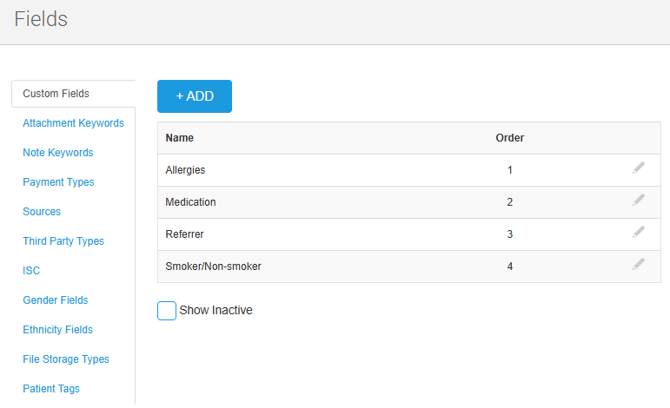
When viewing deactivated fields, you'll see the option to edit and to activate them again, if you so wish.
3. Custom fields can be added to anything you compose in WriteUpp (like notes, documents or email templates) using the VAR dropdown. You'll see custom fields listed at the bottom of the VAR list:
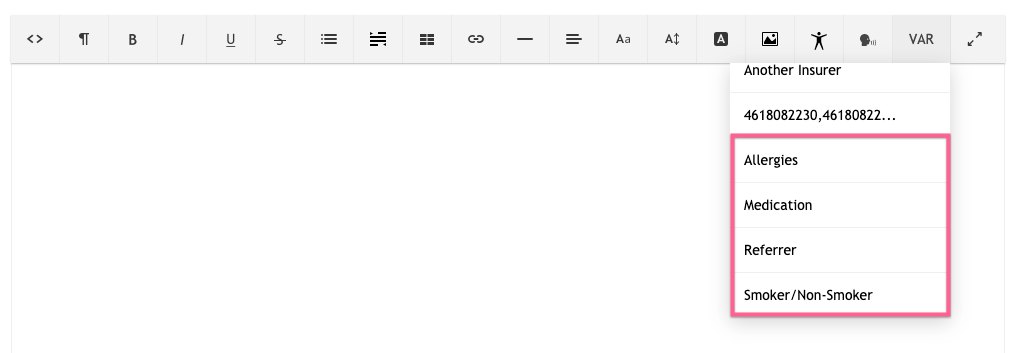
You can also add custom fields to your invoice template, which you can read more about here and as 'smart fields' to a form template, which is covered here.