
With the Mailchimp integration, you can easily export your client list into Mailchimp. You can also export tags from various views across WriteUpp. Furthermore, once connected, new clients created in WriteUpp sync straight to your chosen Mailchimp audience.
You can check out how to connect your WriteUpp site to Mailchimp here.
However, if you do not wish to connect to Mailchimp for whatever reason, or you use an alternative to Mailchimp, then a method for manually exporting your client list is shown below.
In WriteUpp:
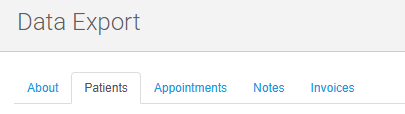
1. Go to Tools -> Data Export (from the burger menu, top-left):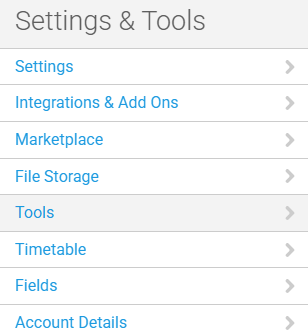
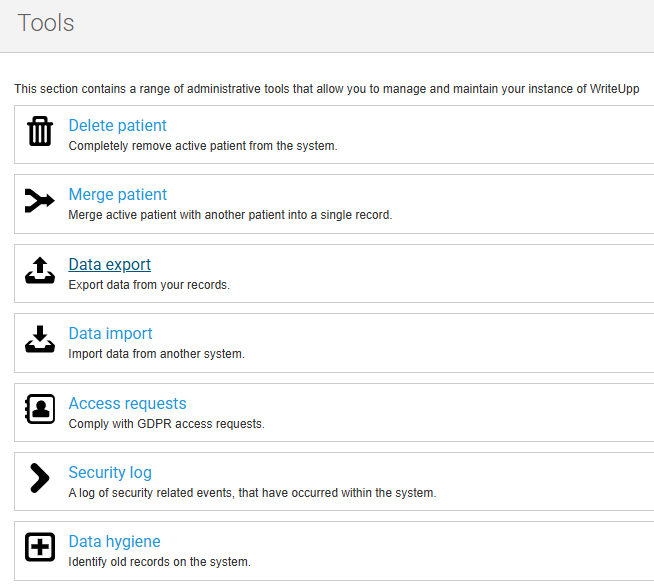
You must have the role of Site Administrator to access the Data Export tool.
In Mailchimp (or other email marketing platform):
1. Login to Mailchimp
2. Click on Audience
3. Click on Manage Audience and choose Import Contacts
4. From here, you have a couple of options. You can either import the CSV file you exported from WriteUpp directly into Mailchimp, or use the copy and paste option to manually copy the information from the CSV file and paste it into Mailchimp. You can also use these options to import information you might have saved from other sources as well.
Each time you want to update your Mailchimp list, you can go through this same process, as Mailchimp automatically de-duplicates your data and will exclude any clients that have clicked on unsubscribe previously.
If you use an alternative email marketing platform to Mailchimp, then follow the steps they layout for importing contacts, as it may vary slightly to Mailchimp.