
For a step by step guide on how to set up your Xero Export, please click here.
Parties that will be responsible for paying an invoice you generate in WriteUpp will need to be mapped to a contact within Xero.
Once you've set up the contact mappings, WriteUpp will use this information to work out which contact within Xero to use during the export process, based on the Payable By field within the invoice.
For example: If you have an invoice payable by a patient and you've mapped that patient to a contact within Xero, when you export your invoice WriteUpp will tell Xero which contact the invoice belongs to: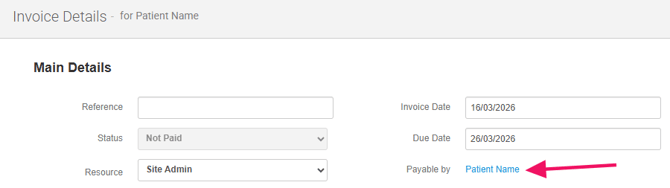
You can map to a Xero contact as part of the export process, but to make the workflow as smooth as possible, you can proactively map Patients, Next of Kin and Third Parties before exporting any invoices.
To find out how to allow WriteUpp to create a new contact in Xero for you as part of the Export process (if the party is not already mapped to an existing contact), click here.
Any invoices marked as Payable by 'Other' can't be automatically mapped to a Xero contact (which the mappings allow), you'll manually select the contact under 'Payable by' as part of the export process. If the person responsible for the invoice isn't a contact in Xero, WriteUpp can create a contact as part of the export process, if you've checked the box to allow this.
Patients/Next of Kin
Patients and Next of Kin are mapped from within the Patient tab of the Patient Summary.
On the Patient tab, click on Edit details to open the record in a editable state. You should see two options for Xero: Add Mapping, one within Key Patient Information and one within Next Of Kin: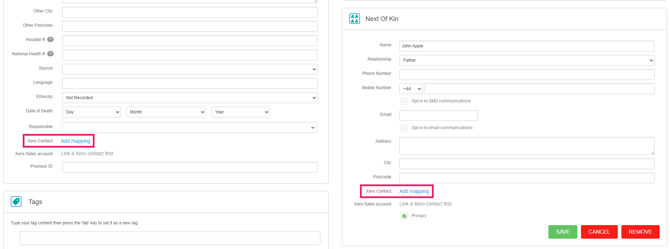
Clicking on Add Mapping will bring up a searchable list of the contacts currently within your connected Xero account:
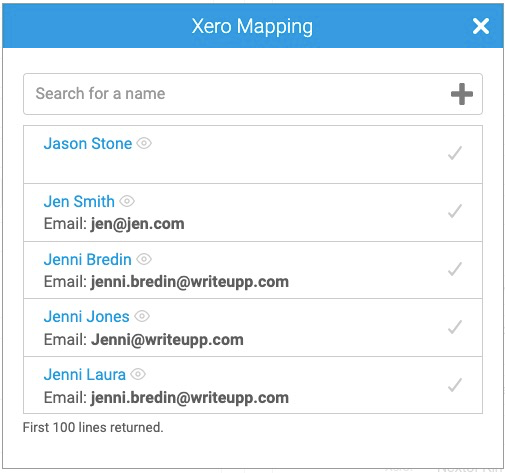
To map the Patient or Next of Kin to one of your Xero contacts, just click on the contact you want to link to, which will add them to the patient record in its editable state: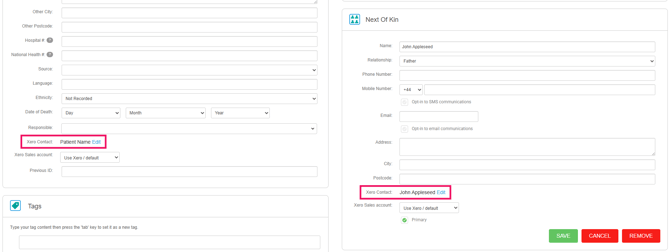
If the patient or next of kin doesn't already exist as a contact within Xero, clicking on the "+" icon within the search bar will allow you to create them as a new contact from within WriteUpp:
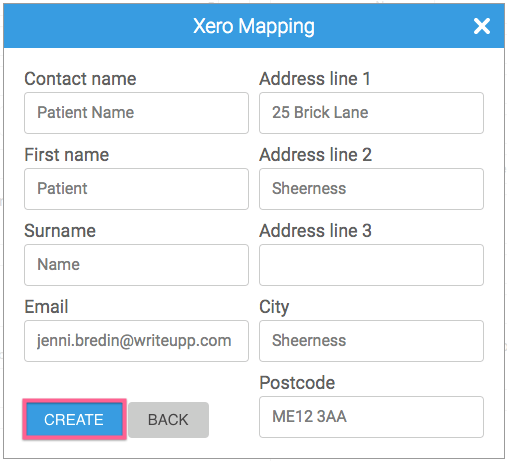
You should then click on Save Changes to save the Xero Mappings to the patient record. If you need to edit the mapped contact, clicking on Edit next to the name will open the contact list and you can choose someone else.
Select a contact-specific sales account:
You can also assign a default Xero sales account to individual contacts in WriteUpp. This means that when invoices are exported to Xero, the correct sales account can be applied automatically based on who the invoice is payable by (Patient or Next of Kin).
Once a contact has been mapped, an optional ‘Xero sales account’ dropdown can be found below the Xero contact link: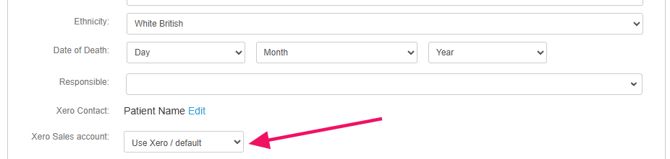
If an account is selected, it will override the default account set under Integrations & Add ons → Xero when exporting invoices. If no contact-specific account is chosen, the system will continue to use your existing default mapping.
The selected account is also shown in the export modal, where it can be reviewed and changed before sending the invoice to Xero.
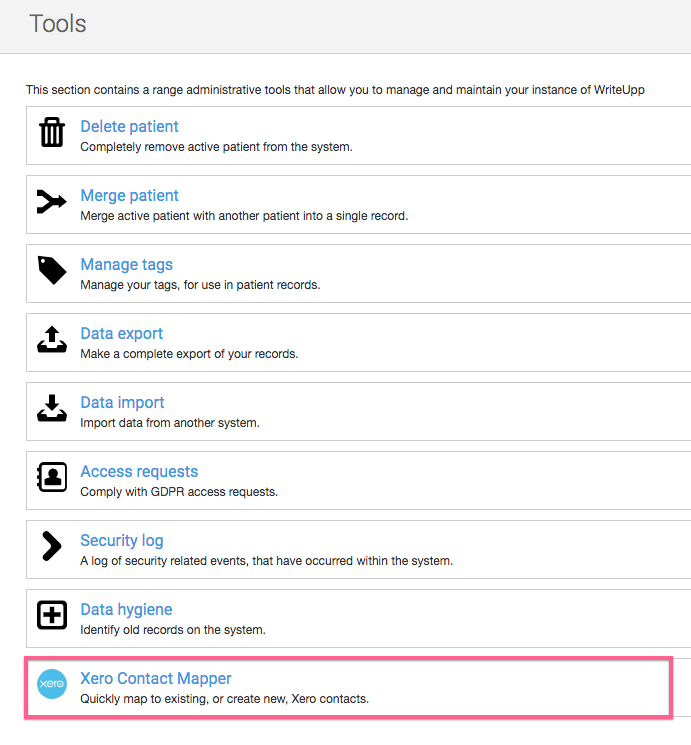
Patients can also be mapped in bulk by going to Tools -> Xero Contact Mapper:
Here you'll see a list of all patients, along with either their mapped Xero contact or a dropdown box where you'll be able to map to a Xero contact:
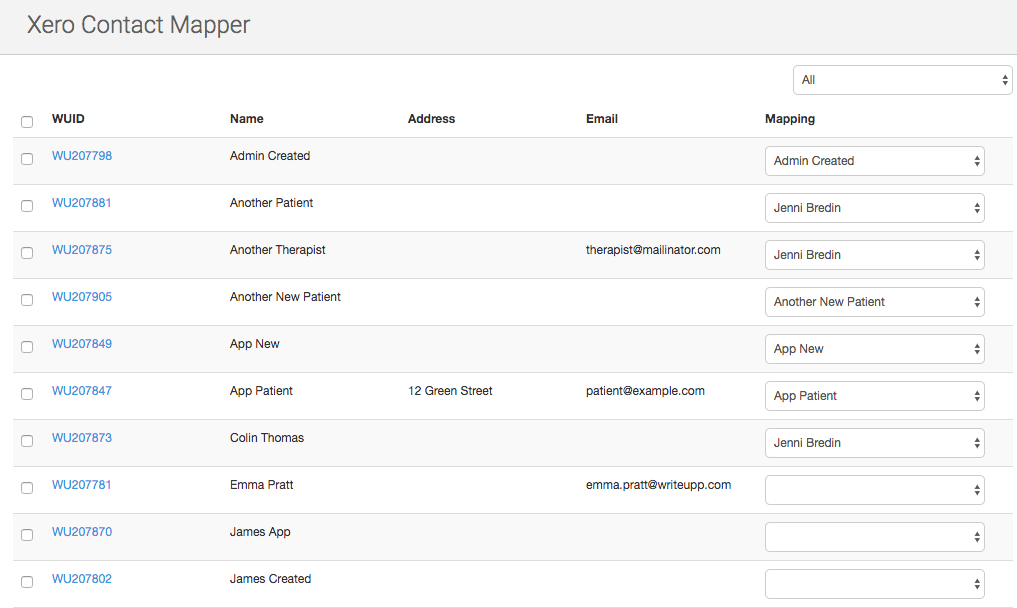
Clicking on the dropdown box will open the list of Xero contacts, allowing you to quickly and easily add and change contacts for multiple patients.
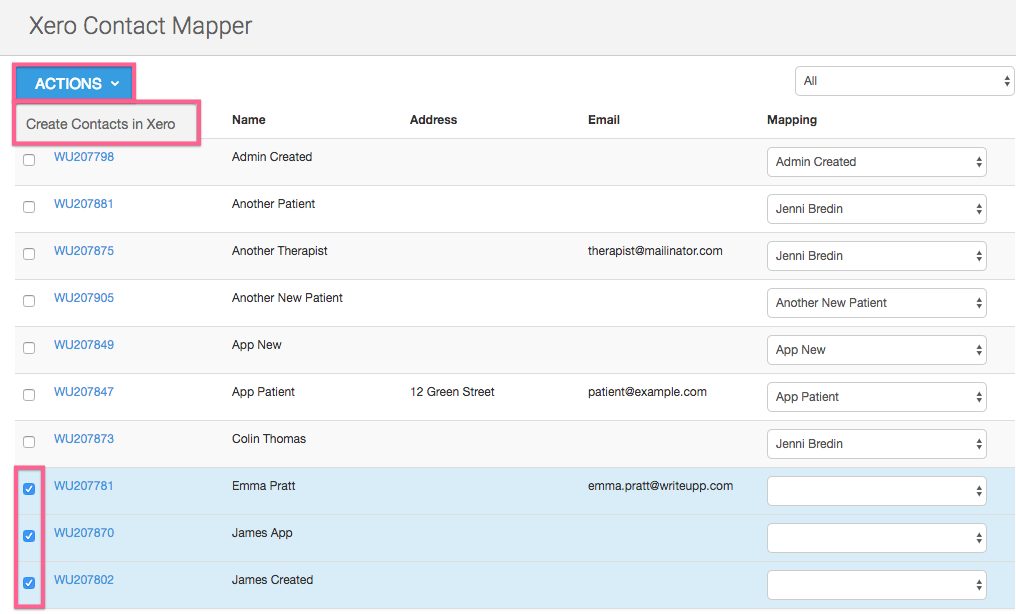
If you need to create new Xero contacts for any of your unmapped patients, you can do this by clicking on the tick box in the first column, then clicking on Actions and choosing Create Contacts in Xero:
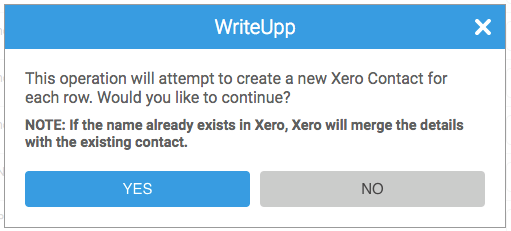
Click on Yes to continue:
And WriteUpp will create the contacts in Xero and map them to the relevant patients:

Third Parties
Third Parties are mapped from within Settings -> Third Parties. Click on Edit next to the Third Party you'd like to map to a contact:
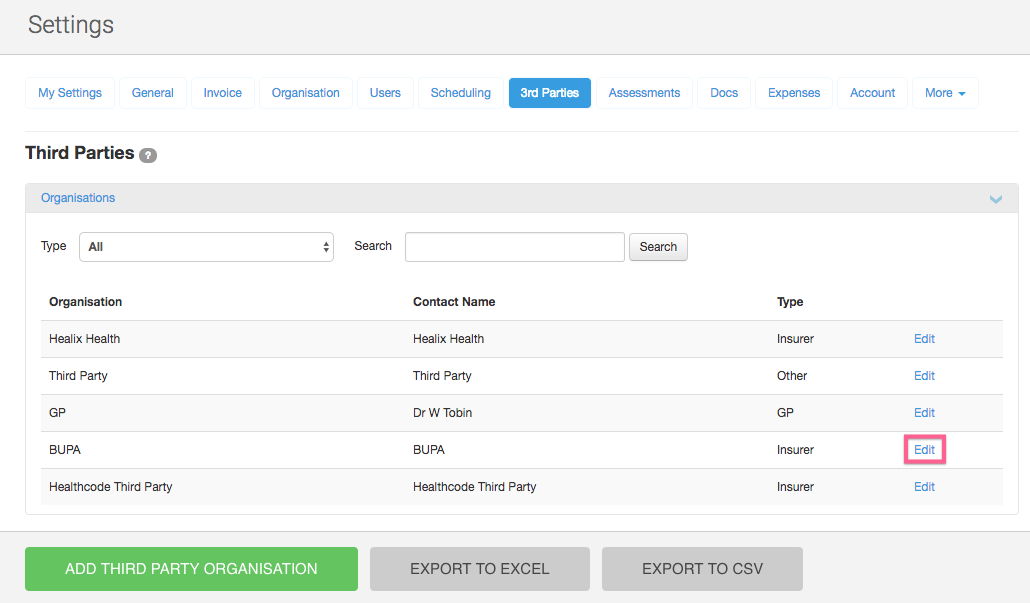
Then click Add Mapping: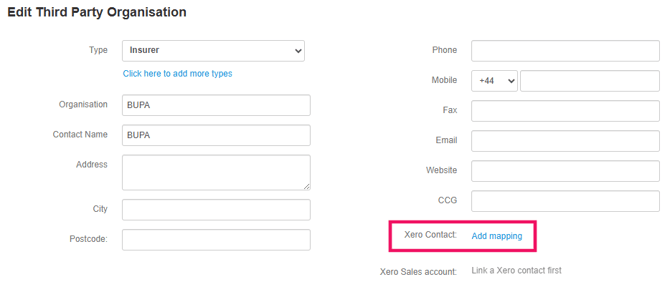
This will bring up the searchable list of contacts from within your Xero account, where you can choose the corresponding contact to be added to the third party: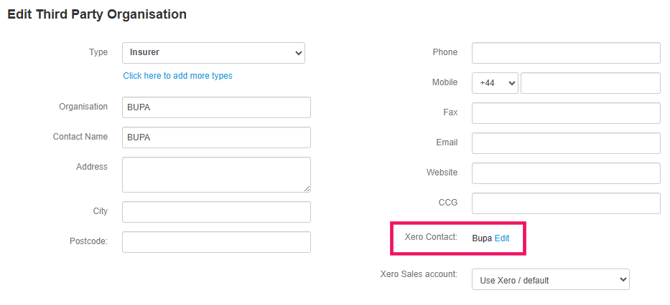
Again if the third party doesn't already exist as a contact within Xero, clicking on the "+" icon within the search bar will allow you to create them as a new contact from within WriteUpp.
You should then click on Save to save the Xero Mappings. If you need to edit the mapped contact, clicking on Edit next to the name will open the contact list and you can choose someone else.
Select a contact-specific sales account:
You can also assign a default Xero sales account to individual Third Party contacts in WriteUpp. This means that when invoices are exported to Xero, the correct sales account can be applied automatically.
Once a contact has been mapped, an optional ‘Xero sales account’ dropdown can be found below the Xero contact link: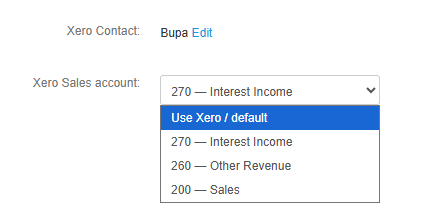
If an account is selected, it will override the default account set under Integrations & Add ons → Xero when exporting invoices. If no contact-specific account is chosen, the system will continue to use your existing default mapping.