
By default, when a client replies to an email sent through WriteUpp, their reply is sent to your organisation's email address.
An Administrator can change this so that replies are sent to the email address of the WriteUpp user who sent the original message. This is a site-wide setting and applies to all eligible emails sent using WriteUpp's default email service.
Turn on replies to the sending user
-
Open the main menu and select Settings.
-
Select General
-
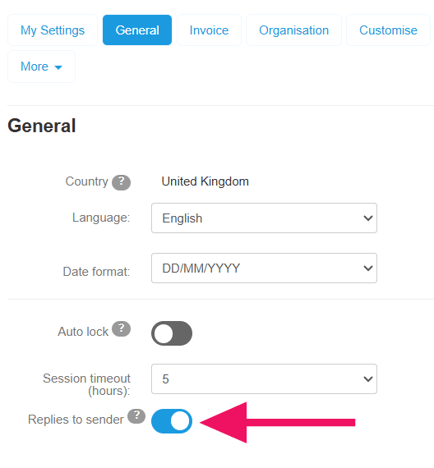
Find Replies to sender beneath the session-timeout setting.
-
Turn the switch on.
-
Save your changes.
When a client uses Reply in their email service, their reply will now be addressed to the email address saved against the WriteUpp user who sent the message.
For appointment confirmations and reminders, replies are directed to the email address of the user who is the appointment resource.
Which emails are covered?
The setting applies to eligible client emails sent using WriteUpp's default email service, including:
-
Manually written client emails
-
Emails containing assessment or consent forms
-
Resent client messages
-
Direct or secure messages and Smart Form notifications
-
Appointment confirmations and reminders sent using the default email service.
Important information
-
This setting changes the reply address only. The From address and the way emails are delivered remain unchanged.
-
Turning on the setting makes the sending user's email address available to the recipient when they reply. Check that users have an appropriate work email address saved against their WriteUpp account.
-
Replies are delivered to the selected email address. They are not saved as messages in WriteUpp.
-
If your site is connected to Gmail or Microsoft 365 for sending emails, this setting is disabled and cannot be selected. Replies to emails will continue to be handled by your connected Gmail or Microsoft 365 account. To use this setting, your site must send emails through WriteUpp’s default email service.
How do I send replies back to the organisation email address?
To return to using the organisation's email address, go back to Settings → General, untick the 'Replies to sender' setting and save your changes.