
If you use an authenticator app for two-factor authentication (2FA), you can choose to stop WriteUpp from automatically emailing you a verification code each time a 2FA challenge appears.
Note: Automatic emails are switched on by default.
To turn them off:
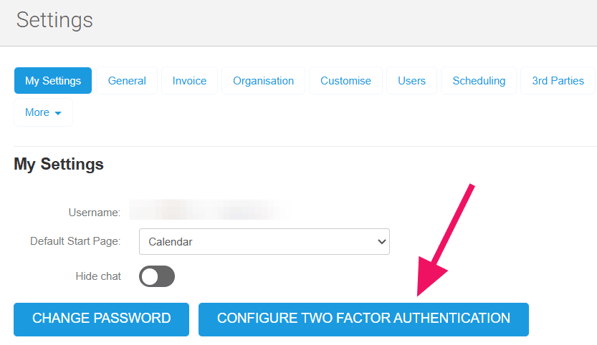
- Go to the main menu → Settings → My Settings.
-
Select the Configure Two-Factor Authentication button next to the Change password button. This is only available once 2FA has been fully set up for the site.
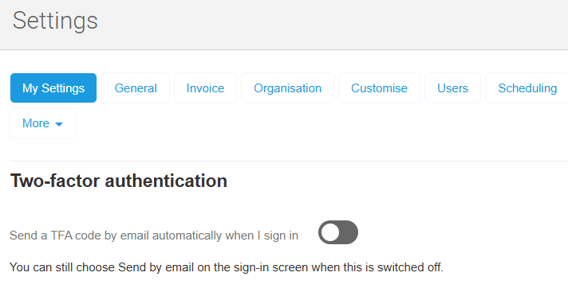
- Switch off the option to automatically send a verification code by email.
- Save your changes.
Once switched off, you can continue to sign in using your authenticator app as normal.
If you ever need a code by email, you can still select Send by email on the 2FA screen and a code will be sent to your verified email address.
This setting is specific to each user, so every user will need to configure it separately for their own account.