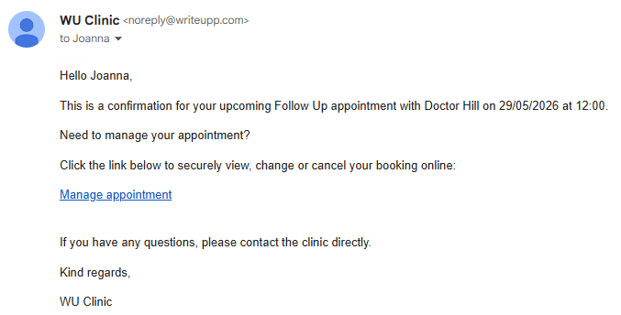
You can include a secure Client Portal link in your appointment confirmation emails and SMS messages, allowing clients to quickly view, reschedule or cancel their appointment online.
The link is added using a magic link variable within your appointment communication templates.
You must have the user role of Site Administrator to manage templates for appointment communications.
Important: The magic link variable included in appointment communications only gives the client access to the specific appointment related to that communication. For security reasons, clients cannot access the rest of the Client Portal or view other appointments through this link.
If you'd like to include your unique full Client Portal access link in appointment communications, you can find it under Integrations & Add-ons → Online Booking → Configure → Client Portal. Copy the link and add it to your email or SMS templates so clients can access the full Client Portal directly.
Where to manage Appointment Communication templates
To create or edit appointment confirmation emails and SMS templates:
- Go to Settings under the main menu
- Select the Scheduling tab
- Go to the Appointment Communications tab
- Select Email Templates or SMS Templates at the bottom of the screen
From here, you can edit existing templates or create new ones.
Learn more about creating and editing templates for appointment communication:
- Managing Email templates for appointment communications
- Managing SMS templates for appointment communications
Adding the Client Portal magic link
When editing an email or SMS template:
- Place your cursor where you would like the link to appear
- Select the VAR dropdown in the toolbar above the text editor
- Choose one of the following variables:
- Next Appt. Link – inserts a clickable link to the portal displayed as “Manage Appointment” text
- Next Appt. URL – inserts the full portal URL directly into the message
Note: For SMS templates, we recommend using the Next Appt. URL variable, as this is more likely to be recognised as a clickable link within the text message.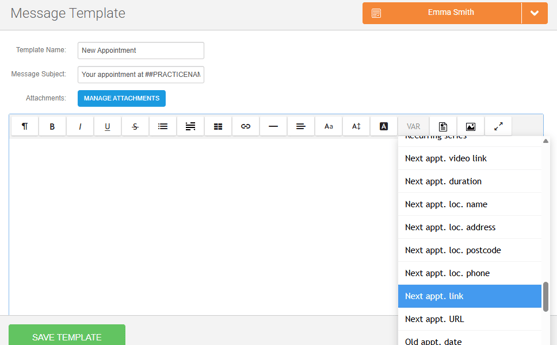
- Save the template
When the communication is sent, WriteUpp will automatically generate a secure personalised link for that client and appointment.
Which templates support the magic link?
The Client Portal magic link can be used within appointment communication templates, including:
- Appointment confirmations
- Appointment reminders
- Appointment update notifications
What happens when the client clicks the link?
When the client clicks the magic link from their email or SMS:
- They are taken to a secure appointment portal page
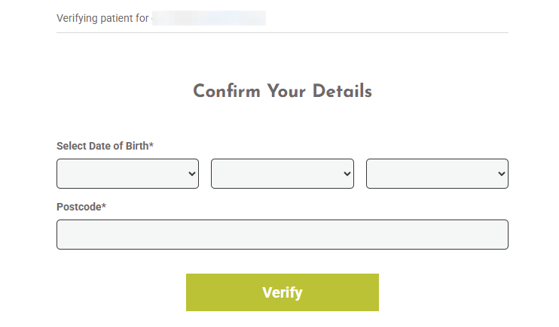
- They are asked to verify their identity using:
- Their Date of Birth
- Their Postcode
- Once verified, they can:
- View the appointment details
- Change the appointment date/time (if enabled)
- Cancel the appointment (if enabled)
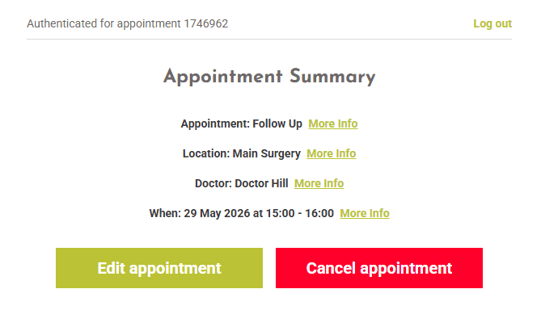
Any restrictions configured in your Client Portal settings, such as cancellation windows or rescheduling limits, will still apply.
Example template
You may wish to include a short explanation alongside the link so clients understand what it is for.
Example email template of appointment confirmation:
Subject: Your upcoming appointment at ##PRACTICENAME##
Hello ##FIRSTNAME##,
This is a confirmation for your upcoming ##NEXTAPPTYPE## appointment with ##USERNAME## on ##NEXTAPPDATE## at ##NEXTAPPTIME##.
Need to manage your appointment?
Click the link below to securely view, change or cancel your booking online:
##NEXTAPPT_MAGIC_LINK##
If you have any questions, please contact the clinic directly.
Kind regards,
##PRACTICENAME##
And this is how it will look when sent to the client: