
User Groups make it easier to manage responsible users, particularly for larger organisations.
Instead of selecting individual users each time you assign responsible users to a client, you can create groups (for example, by school, department or location) and assign the whole group in a single step.
When a User Group is assigned as responsible for a client, every user within that group is treated as a responsible user and has the same access as if they had been assigned individually.
Creating a User Group
To create a new User Group:
- Go to Main Menu → Settings → Users → User Groups.
Note: You must have the role of Site Administrator to manage user groups. - Select Add New Group.
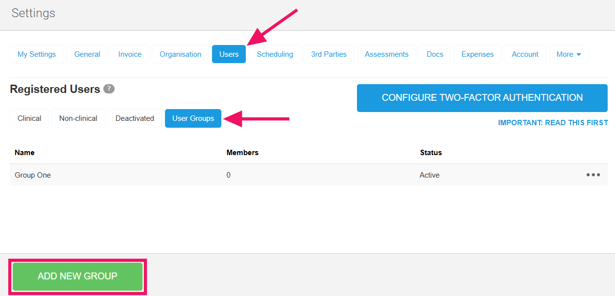
- Enter a name for the group in the modal.
- Click on the Add Members button at the bottom of the screen
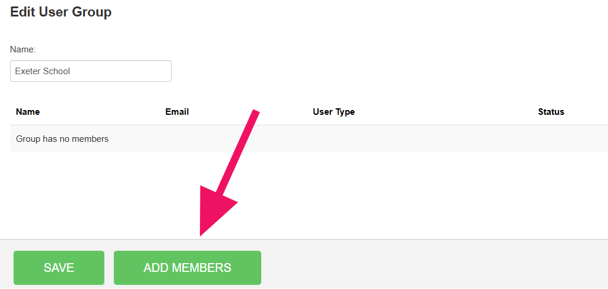
- Select all of the users you want to include
- Click Add Members to confirm.
- Press Save at the bottom of the page when you are happy with the group.
Your new group will now be available to select when assigning responsible users to patients.
Editing a User Group
You can add or remove users from a group at any time by editing the User Group.
If a User Group has already been assigned as responsible for one or more clients:
- Users added to the group automatically become responsible for those clients.
- Users removed from the group will no longer be responsible for those clients unless they have also been assigned individually.
To make changes to a user group:
- Go to Main Menu → Settings → Users → User Groups.
Note: You must have the role of Site Administrator to manage user groups. - Click on the 3 dot menu next to an existing user group
- Select Edit User Group

- Make your changes:
- Use the Name field to change the name
- Use the Add Members button to add more users
- Use the Bin icon next to an exisitng member to remove them - Remember to press Save at the bottom of the page to keep the changes.
Deactivating a User Group
If a User Group is no longer required, you can deactivate.
To deactivate a User Group:
- Go to Main Menu → Settings → Users → User Groups.
- Click on the 3 dot menu next to the User Group you want to deactivate.
- Select Deactivate.

- Confirm the action in the warning modal.
Once deactivated, the User Group can no longer be selected when assigning responsible users.
If the User Group was previously assigned as responsible for any clients, it will no longer grant responsibility or access to those clients. If required, assign a different User Group or individual responsible users before deactivating the group to ensure the correct users continue to have access.
Always deactivate a User Group with care, as doing so may immediately affect which users can view and access patient records.
If needed, a deactivated User Group can be reactivated at a later date. However, it will NOT automatically be reassigned to any clients it was previously responsible for.
Assigning a User Group as a Responsible User
To assign a User Group to a client:
- Open the client's record.
- Click Edit Details
- Click on the Responsible field.
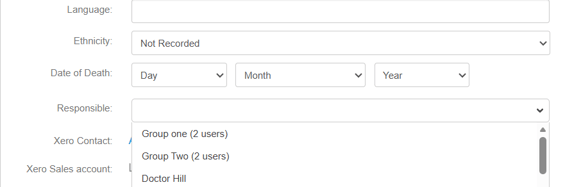
- Select the required User Group from the list.
Note: User groups are always listed at the top of the dropdown, above individual users. - Save your changes.
The selected group will be shown alongside any individually assigned responsible users.
Did you know? You can assign:
- One or more User Groups.
- Individual users.
- A combination of User Groups and individual users.
How User Groups Affect Access
For sites using Visible to Responsible Users visibility, User Groups work exactly like individually assigned responsible users.
Members of a responsible User Group can:
- View clients assigned to their group.
- Access those clients throughout WriteUpp wherever responsible user permissions apply.
- Continue to work as normal without needing to be assigned individually.
Site Administrators continue to have full access to all records regardless of User Group membership.
Important: User Groups are simply another way of assigning responsible users. They do not change how responsible user permissions work.
Read more about the responsible user visibility setting here.