
Choose your own brand colour, select from four typography styles, and add welcome messages to give your patients a more personalised experience.
Your chosen branding will automatically apply to both Online Booking 2.0 and the Client Portal, keeping their appearance consistent.
Where can I find the Branding settings?
To customise your branding:
- Log in to WriteUpp as a Site Administrator.
- Go to Main Menu → Integrations & Add Ons.
- Find Online Booking and select Configure.
- Select the Branding tab.
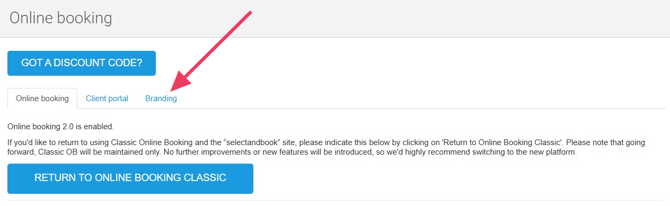
From here, you can manage your practice logo, brand colour, typography and welcome messages.
You can also preview your changes before saving them.
How do I change my practice logo?
Your existing practice logo is used across both Online Booking 2.0 and the Client Portal.
To change it:
- In the Branding tab, find the Practice Logo section.
- Select Change Logo.
- You'll be taken to your Practice settings, where you can update your logo.
How do I add a welcome message?
You can add a personalised welcome message to your Online Booking and Client Portal pages.
Each page has its own welcome text field, so you can display a different message depending on where your patients are visiting.
To add a welcome message:
- In the Branding tab, find Online Booking Welcome Text or Client Portal Welcome Text.
- Enter the message you'd like your patients to see.
- Check how your message looks in the preview.
- Click Save Branding.
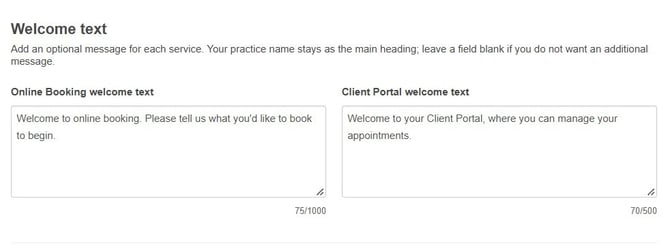 Both fields are optional, so you can leave them blank if you prefer. Your practice name will continue to appear as the main heading on both pages.
How do I change my brand colour?
You can choose a custom colour to match your practice's branding.
Your selected colour will be used throughout Online Booking and the Client Portal, including buttons, links, selected appointment dates and other highlighted elements.
To change your brand colour:
- Under Brand Colour, click the colour picker to choose your preferred colour.
- Alternatively, enter a six-digit HEX colour code, such as #3B82F6.
- The preview will update automatically to show your chosen colour.
- When you're happy with your selection, click Save Branding.
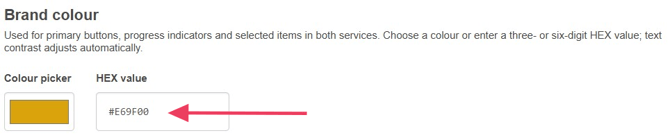
WriteUpp automatically adjusts certain text, button and background colours to help keep everything clear and readable, even when using very light or dark colours.
Note: You can enter any valid six-digit HEX colour code. You don't need to choose from a set of predefined themes.
Can I change the fonts used on my Online Booking page?
You can choose from four typography styles to give your Online Booking and Client Portal pages a different look.
The available options are:
- WriteUpp – The familiar WriteUpp style
- Contemporary – A clean, modern appearance
- Friendly – A softer, rounded appearance
- Classic – A more traditional style
To change your typography:
- Find the Typography Style section in the Branding tab.
- Select one of the four available styles.
- The preview will update to show how your chosen typography looks.
- Click Save Branding to apply your selection.
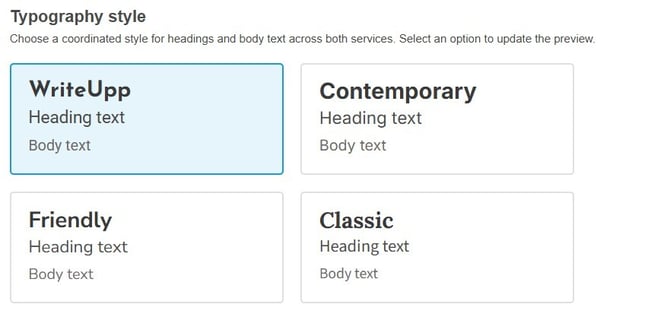
Your chosen typography will be applied throughout Online Booking and the Client Portal, including headings, buttons, forms and navigation.
Note: Font sizes and spacing are managed automatically by WriteUpp, so you only need to choose your preferred style.
How do I preview my branding changes?
You can see how your branding will look before applying it to your live Online Booking and Client Portal pages.
In the Branding tab, use the preview toggles to switch between:
- Online Booking
- Client Portal
- Mobile view
- Dark mode (if enabled)
The preview updates automatically as you change your brand colour, typography or welcome text.
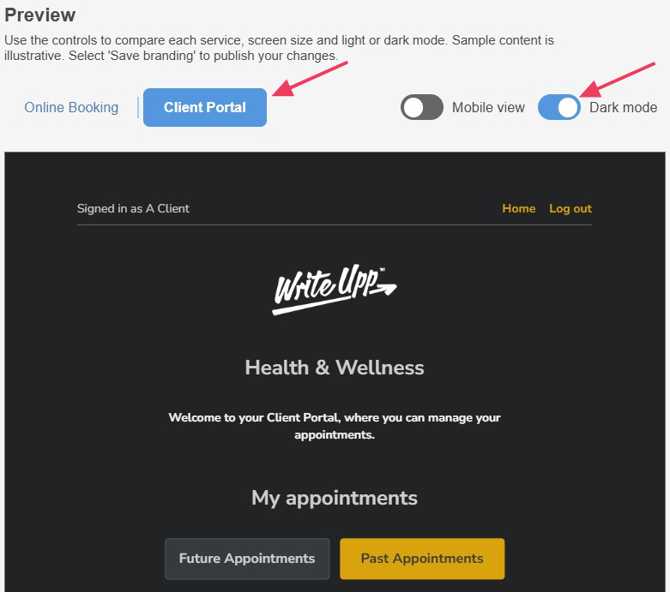
Once you're happy with how everything looks, click Save Branding to apply your changes.
We recommend checking how your chosen colour looks with different buttons, links and text, particularly if you're using a very light or dark colour.
Can I enable or disable light and dark mode on my Online Booking and Client Portal?
You can choose whether patients can switch between light and dark mode when using your Online Booking and Client Portal pages.
To manage this:
- In the Branding tab, find the Display mode setting.
- Toggle this On to allow patients to switch between light and dark mode, or Off to hide the option.
- Click Save Branding to apply your changes.

When enabled, patients will see a light/dark mode switch at the top of the page, allowing them to choose their preferred appearance.
When disabled, the switch will be hidden from patients.
Note: Your chosen brand colour and typography will still apply whether the light/dark mode switch is enabled or disabled.
How do I reset my branding to the WriteUpp default?
If you decide you'd prefer the original WriteUpp appearance, you can reset your branding.
- Go to Main Menu → Integrations & Add Ons → Online Booking → Configure → Branding.
- Select Reset Appearance from the footer.
- Confirm the reset.
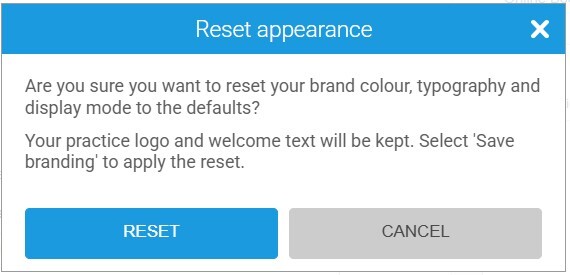
This restores the default WriteUpp brand colour and typography, while keeping your logo and welcome text.
Will my branding also appear on the Client Portal?
Yes. Your chosen brand colour, typography and practice logo will automatically be applied to both Online Booking 2.0 and the Client Portal.
You can set a different welcome message for each page, but the overall branding will remain consistent.
If you've embedded Online Booking 2.0 on your own website, your chosen branding will also appear there.
What happens if I don't change my branding?
Nothing will change!
If you don't customise your branding, Online Booking 2.0 and the Client Portal will continue to use the standard WriteUpp appearance.
You can update your branding whenever you like.
Does this work with Classic Online Booking?
No. These branding options are only available for Online Booking 2.0 and the Client Portal.
If you're using Classic Online Booking, you can still customise its appearance using the existing theme options.
Can I change the look of my online booking page to fit with my brand (Classic OB)?
We'd strongly recommend switching to Online Booking 2.0, which offers a much improved experience for both you and your clients.
Switching from Classic Online Booking to Online Booking 2.0