
Once an assessment has been configured with Outcome Measures, clinicians simply need to complete the assessment as normal. Any calculated scores are generated and recorded automatically.
- Open the assessment for the patient under Create → Assessment
- Complete each Outcome Measure question by selecting or entering the appropriate response:
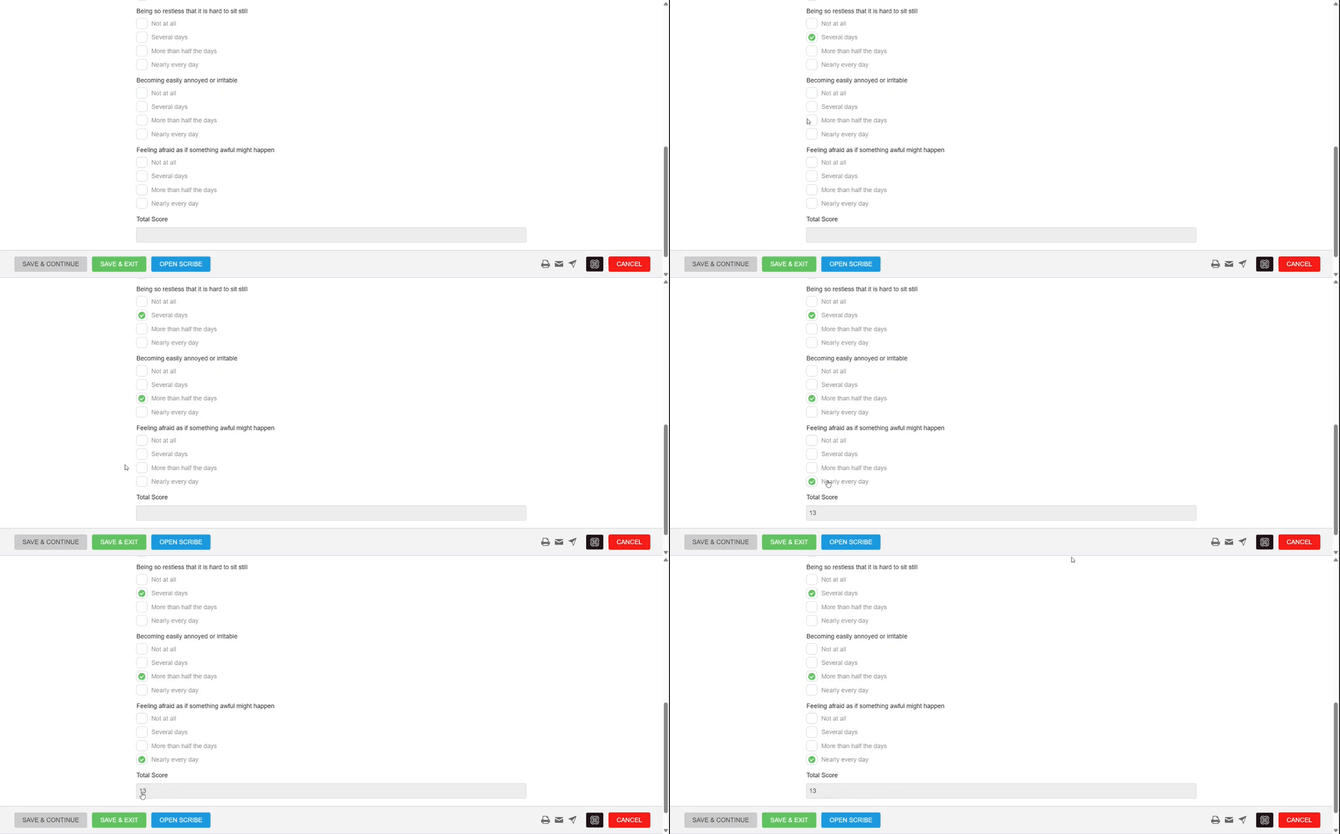
- Review the automatically calculated total score.
Note: This field is read-only and cannot be edited manually. - Complete any remaining sections of the assessment.
- Save the assessment.
When the assessment is saved, the calculated Outcome Measure values are automatically stored and made available for patient outcome tracking and reporting. No manual calculation or data entry is required.
Send an assessment to a client
If required, you can also send an assessment containing Outcome Measures as a Smart Form to a client for them to complete themselves.
Once the client has completed and submitted the assessment, any configured Outcome Measure values will be calculated automatically and recorded in the same way as assessments completed by a clinician.
If you use the WriteUpp app, please make sure you are on version 3.7.2 or later to use Outcome Measures!