
When you create a new WriteUpp trial, we automatically add an extra layer of security to help protect your account. This means that, from your second sign-in onwards, you’ll be asked to enter a verification code sent to your registered email address as well as your usual password. This article explains what to expect, how the sign-in process works, and what to do if you don’t receive your code.
What is two-factor authentication?
Two-factor authentication, or 2FA, adds an extra security check when you sign in.
Instead of relying only on your password, WriteUpp asks you to provide two things:
- Your email address and password
- A verification code sent to your email address
This helps protect your account if somebody else obtains your password.
2FA is enabled automatically for new WriteUpp trial sites, so you do not need to switch it on yourself.
We know that entering an extra verification code when you sign in can feel like an additional step, but it plays an important part in keeping your WriteUpp site and the sensitive client information it contains secure. Two-factor authentication provides an extra layer of protection if your password is ever compromised, helping to prevent unauthorised access to your account → Account Security - Best Practice.
What happens when I create my trial?
When you register for WriteUpp:
- Enter your details and create your account.
- Make sure you use an email address you can access, as we’ll use this address for signing in and sending security codes.
- Follow the instructions to create your new WriteUpp site.
Once your site has been created, you’ll be signed in automatically.
You won’t need to enter a verification code during this first session.
What happens the next time I sign in?
The next time you return to WriteUpp:
- Open your WriteUpp site.
- Enter the email address and password you used when registering.
- Select Sign in.
- We’ll send a six-digit verification code to your email address.
- Open the email and copy the verification code.
- Return to WriteUpp and enter the code.
- Select Verify.
Once the code has been verified, you’ll be signed in to your site.
Entering the code also confirms that you have access to your registered email address and sets up email authentication for your WriteUpp account.
I haven't received my verification code
Verification emails will usually arrive shortly after you sign in, but occasionally they may take a few minutes.
If you haven't received your code:
- Check the inbox for the email address you used when registering.
- Check your junk or spam folder.
- Search your inbox for an email from WriteUpp.
- Select Send another code by email where the option is available.
If you request several codes within a short period, further requests may be temporarily limited for security reasons.
If you cannot access your registered email address, or your verification code still doesn't arrive, please contact WriteUpp Support.
We can temporaily disable mandatory 2FA, so you can still access your WriteUpp account. However, as 2FA is mandatory for important security reaons, you will be asked to set this up at again at a later date.
What happens when I add other users?
Two-factor authentication is set up individually for each WriteUpp user.
When you add somebody to your site, make sure their profile uses an email address that they can access.
When they sign in and are asked to verify their account, WriteUpp will send the verification code to their own email address.
Entering the code confirms their email address and sets up email authentication for their account. Each user must complete their own security setup and cannot use another user's verification code.
Can I use an authenticator app or SMS instead?
Yes. Email is all you need to complete the initial security setup for your new account.
Once you're signed in, you can choose to configure another verification method, such as:
- An authenticator app, such as Google Authenticator
- SMS, where this option is available for your site
These methods are optional and are configured separately for each user. You can find this setup under the main menu → Settings → My Settings → Configure Two Factor Authentication.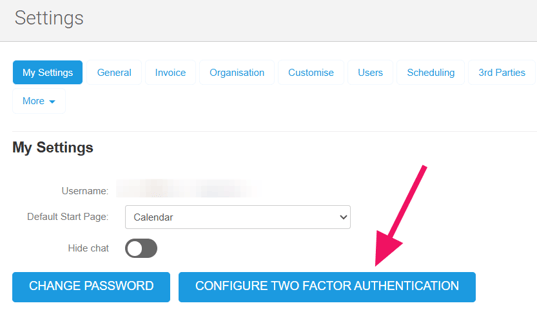
Does this affect existing WriteUpp sites?
Not yet. Existing WriteUpp sites are not automatically affected by this change.
For now, mandatory two-factor authentication applies to newly created WriteUpp sites in the UK and Canada.
However, mandatory email two-factor authentication will be introduced for all WriteUpp sites soon. We recommend setting it up now so you’re ready when the change takes effect.
How do I enable two-factor authentication?