
Xero Tracking Categories allow you to report on different areas of your business, such as clinicians or locations. If you use Tracking Categories in Xero, you can now map them in WriteUpp so they are automatically included when exporting invoices, saving you from adding them manually in Xero.
This guide explains how to set this up.
Before you start
- You must already have Tracking Categories set up in Xero
- A maximum of two Tracking Categories can be active in Xero at any one time
- Your WriteUpp site must be connected to Xero
- Location tracking requires multiple locations to be enabled in WriteUpp
Step 1: Select Tracking Categories on the Xero Integration Screen
First, choose which Xero Tracking Categories you want to use for clinicians and/or locations.
1. Go to Main Menu → Integrations & Add Ons → Xero → Configure
2. Scroll to the 'Tracking Categories' section:
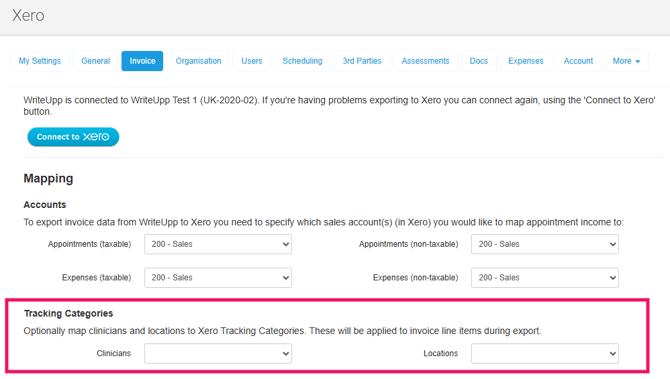
3. Use the dropdowns to select:
- A Tracking Category for Clinicians
- A Tracking Category for Locations
These fields are optional and can be left blank if you don’t want to use tracking.
Once selected, WriteUpp will pull in the available options from Xero for use elsewhere in the system.
Step 2: Assign Tracking Options to Clinicians
If you’ve selected a Tracking Category for clinicians:
1. Go to Main Menu → Settings → Users
2. Open the 3 dot menu for a clinical user and click Edit Profile
3. Use the Xero Tracking Category dropdown to select the relevant Xero option for that clinician:
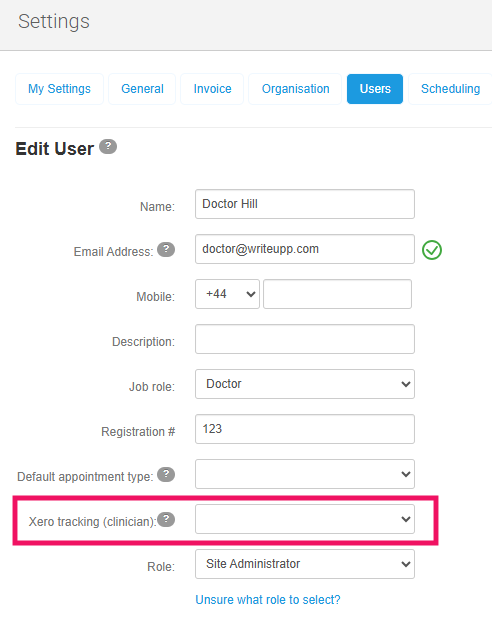
4. Save your changes
Note: Tracking options are available for clinical users only.
Step 3: Assign Tracking Options to Locations
If your site has multiple locations enabled and you’ve selected a Tracking Category for locations:
1. Go to Main Menu → Settings → Organisation
2. Edit the relevant Location
3. Select the appropriate Xero Tracking Category option from the dropdown:
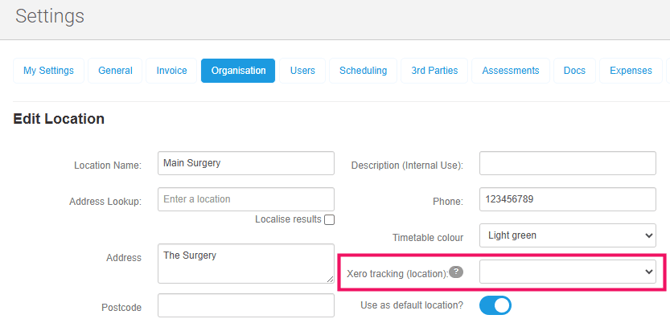
4. Save your changes
Step 4: Export invoices to Xero
When you export an invoice to Xero:
- The Tracking Category name and option will be applied automatically to each appointment line item
- The clinician is taken from the clinician resource attached to the appointment
- The location is taken from the appointment location
Once exported, the invoice in Xero will already include the correct Tracking Categories, with no manual edits needed!
What happens if something changes in Xero?
- If a Tracking Category or option is deleted or changed in Xero, WriteUpp will simply ignore it
- The invoice export will still succeed
- You’ll need to return to WriteUpp and assign a new option, if required.