
This month's release brings some exciting new features and improvements to WriteUpp! You can now use AI Scribe in the WriteUpp App to record consultations on the go, even offline.
We've also introduced more flexible invoice editing, automatic Xero exports, default invoice payors, easier ways to move clients between Lists, customisable Client Portal identity checks and improved Online Booking embeds.
Plus, lots more improvements and fixes to make your day-to-day work in WriteUpp even easier.
Read on to discover what's new in v2.18.5!
New Features
AI Scribe is now available in the WriteUpp App!
We're excited to introduce AI Scribe in the WriteUpp App! You can now record consultations and create clinical notes, documents and assessments directly from your phone, making it easier than ever to capture consultations while you're on the go.
Simply open a client record, select AI Scribe from the menu and choose what you'd like to create:
- Notes – Generate clinical notes using your chosen AI Scribe template.
- Documents – Create documents using your preferred AI Scribe template.
- Assessments – Complete assessments using your existing WriteUpp assessment templates.
For notes and documents, you can also choose Dictation mode, just as you can in your WriteUpp site.
Flexible recording, wherever you are
Once you've selected your output and template, and chosen your upload preference (including Wi-Fi only or Wi-Fi and mobile data), you're ready to start recording! You can:
- Pause and resume recordings whenever you need to.
- Minimise AI Scribe and continue navigating the app while recording, allowing you to refer to client notes, assessments or other information.
- Record offline, with recordings safely queued for upload when your connection returns.
Please note: To record offline, you'll need to have opened AI Scribe for the client while online during your current signed-in session.
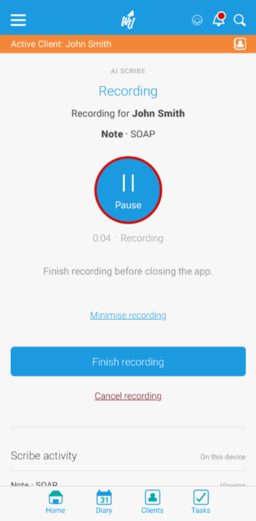
Keep track of your recordings
The new AI Scribe section in the app lets you view previous recordings, including their date, duration and current status.
Once you've finished recording, AI Scribe will process your audio and generate your chosen output. You can continue using the app while this happens and check its progress at any time.
When your note, document or assessment is ready, you can open it directly from the recording summary.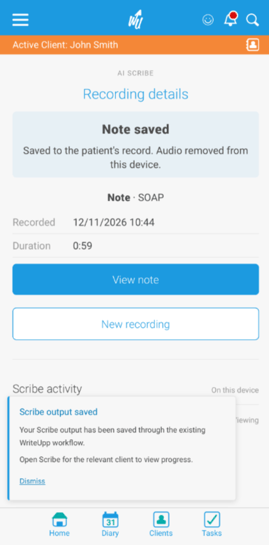
With AI Scribe now available on mobile, you've got even more flexibility to capture consultations and keep your clinical records up to date, wherever your working day takes you.
→ Using AI Scribe in the WriteUpp App
Improvements
Edit, add and remove items on unpaid invoices
You can now add, edit and remove items from unpaid invoices, making it easier to make changes without having to create a new invoice.
Simply open an unpaid invoice and select Edit (previously Edit Header). From here, you can:
- Edit item descriptions.
- Update prices, discounts, tax and vouchers.
- Remove existing items.
- Select 'Add items' to include additional uninvoiced appointments or expenses.
Once you're happy with your changes, select 'Save Invoice'. Your invoice totals and outstanding balance will update automatically, while the original invoice number stays the same.
Please note: You can only make changes to invoice items if no payments have been made or allocated and there is no successful Healthcode claim.
If the invoice has already been exported to Xero, you'll need to re-export it to reflect your changes.
→ How do I edit, add or remove items on an invoice?
Automatically export invoices to Xero
We've made it easier to keep your invoices up to date in Xero with a new option to automatically export invoices when they're saved in WriteUpp.
Instead of manually exporting each invoice, you can now let WriteUpp take care of this for you, saving time and reducing admin.
To enable this, open your Xero integration settings and switch on ‘Automatically send invoices to Xero when saved’, located below the Mapping section.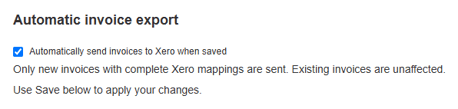
Once enabled, new invoices will automatically be sent to Xero, provided the required Xero settings and mappings are in place. This includes invoices created through WriteUpp and Online Booking.
The setting is switched off by default and only applies to newly created invoices. You can still export invoices manually whenever needed.
→ How to automatically export invoices to Xero
Set a default invoice payor for each patient
You can now choose who should be responsible for paying a patient's invoices, saving you time when creating new invoices.
Go to the Patient Summary → Settings → Invoice defaults to select the patient, an active next of kin or a linked third party as the default payor.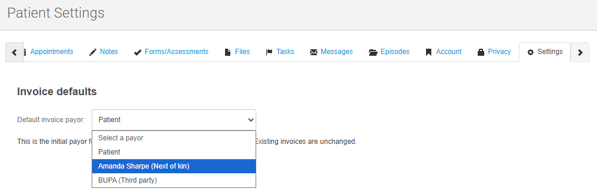
Your selection will automatically be used when creating invoices through Quick Invoice or Create → Invoice, but you can still change the payor on individual invoices if needed!
If no default is set, the patient will remain the default payor. Note: Changing this setting won't affect any existing invoices.
→ How do I set a default invoice payor for a patient?
Easier subscription management
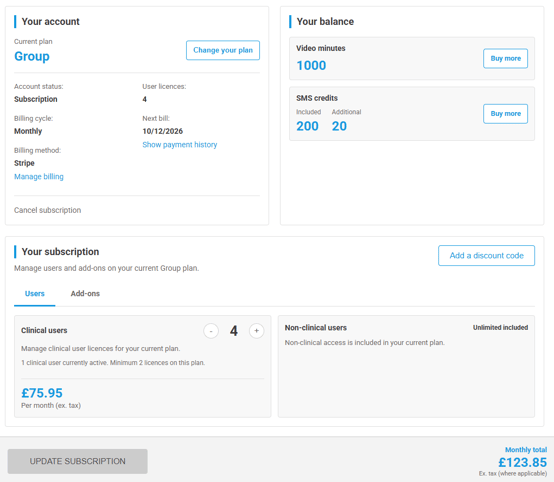
We've refreshed the Account Details screen to make managing your WriteUpp subscription simpler. You'll now find separate 'Users' and 'Add-ons' tabs, making it easier to see how to adjust your user licences and add-ons without changing your plan.
We've also made your current plan and the 'Change your plan' option easier to find, alongside improvements to the layout, pricing information and subscription details.
More flexible Client Portal identity checks
You can now choose which details clients need to enter when accessing the Client Portal, making it easier for practices where a client's date of birth or postcode/Eircode may not be recorded.
As a Site Administrator, head to Admin → Integrations & Add-ons → Online Booking → Client Portal and use the new Identity check setting to choose from:
- Date of birth and postcode – the default and most secure option.
- Date of birth only – reduced security.
- Postcode only – reduced security.
Clients will still need to follow their secure email, SMS or appointment link to access the portal, but will only be asked for the details you've selected.
There's no need to make any changes unless you'd like to use one of the new options. Your existing identity checks will remain in place by default.
Client Portal: easier access to messages about appointment changes
When a client leaves a message while changing or cancelling an appointment through the Client Portal, your Desktop notification and staff email now highlight it.
Select ‘View message’ within the notification or email to open the message directly in WriteUpp, helping you spot important information accompanying the change.
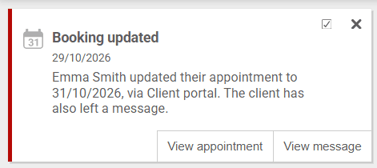
Note: Message content stays within WriteUpp and is not included in the email.
More control over Client Portal appointment notifications
You can now customise how you’re notified when a client changes or cancels an appointment through the Client Portal.
We’ve added ‘Portal appointment cancellation’ and ‘Portal Appointment change’ to your notification settings. For each, you can select Important, Show boost, Show dialog and Browser, or choose Don’t show to turn those notifications off.
To manage your notifications in WriteUpp, click on your username in the top right and select ‘Manage’ next to Notifications.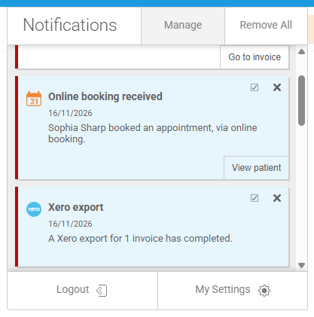
Your choices apply only to your own account, so each user on the site can set their own preferences.
Move clients between lists more easily
You can now move a client directly from one list to another without having to manually add and remove them.
Simply open the three-dot menu next to the client in Lists, select ‘Move to another list’, choose their new list and select ‘Move client’.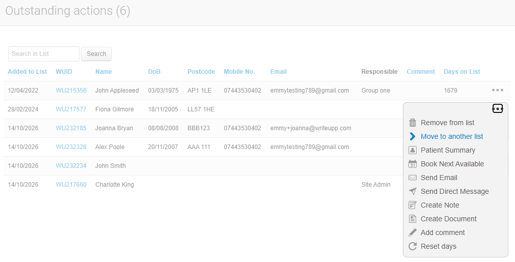
Any existing list comment will be carried across, and their Days on List will start again from zero. Any other lists the client belongs to will remain unchanged.
Activity Feed history retention
We’ve added a new setting under Settings & Tools → Settings → General, allowing Site Administrators to choose how long Recent Activity Feed history is retained: 30 days, 6 months, 1 year or 2 years.
Existing sites will initially be assigned a retention period based on their oldest available Activity Feed entry, while new sites will default to 6 months.
Note: You can increase the retention period up to 2 years, allowing your Activity Feed history to build up over time. However, previously deleted activity cannot be restored.
Reducing the retention period will display a confirmation warning, and older entries may take up to 24 hours to be removed.
Remember your preferred Notes view
WriteUpp now remembers whether you prefer Grid or List view when reviewing client notes.
Your chosen view is saved automatically, so whenever you return to Notes, you'll see it displayed just how you left it, even when switching between clients or signing in on another device.
You can switch between Grid and List view at any time, and WriteUpp will remember your latest choice.
More phonetic symbols available in notes
We've added two new symbols to the Phonetics symbols picker when creating notes: ɬ (voiceless alveolar lateral fricative) and ʋ (labiodental approximant).
Improved privacy when sending patient emails and SMS
For sites using the Visible to Responsible user setting, colleague recipients are now restricted to the patient's responsible users, assigned group members and Site Administrators when sending emails or SMS messages.
This helps prevent confidential patient information from being accidentally shared with colleagues who shouldn't have access.
Patient, next-of-kin and third-party contacts remain available, and there’s no change for sites where this setting is disabled.
Clearer microphone guidance in Video Consultations
If microphone access is blocked during a Video Consultation, you’ll now see a message above the microphone icon about enabling access in your browser or device settings. Once access is enabled, select ‘Reload call’ to resume the call with audio.
This guidance is available to both hosts and participants.
Clearer messages when exporting invoices and Notes
We've improved the error messages shown if there's a problem starting an invoice or Notes export. You'll now see a warning with an export reference number and guidance on what to do next.
If this happens, refresh the page and check the export status before trying again, as your export may still be processing. If it remains Pending, please contact our Support team and provide the reference number.
Assign Responsible User Groups during client import
We've added a new Responsible User Group mapping option to main menu → Tools → Data Import, making it easier to assign clients to the correct teams when importing new records into WriteUpp.
You can now assign imported clients to an existing User Group, alongside the existing individual Responsible User option, or use both together without needing to update each client manually after import.
Clearer payment options in Online Booking
We've improved the payment step in Online Booking 2.0 to make it easier for clients to choose how they'd like to pay. Available payment methods are now displayed in a clear, vertical list rather than tabs, with all options visible without needing to select More.
Improved appearance for embedded Online Booking
-
A cleaner appearance: We've restored the transparent background for embedded Online Booking 2.0, helping the booking form blend more naturally with your website's design. We've also hidden the light/dark mode switch for a cleaner, more seamless experience.
-
Choose which branding to display: You can now choose whether to show your practice logo and name. Under Admin → Integrations & Add-ons → Online Booking, you'll find Show practice logo and Show practice name. Display both, either one, or neither to suit your website's existing branding.
-
Automatically adjust the booking window height: A new Automatic height option adjusts the booking window as clients move through the booking process, helping to reduce unnecessary space and scrolling. Under Admin → Integrations & Add-ons → Online Booking, you can choose between Automatic height and Fixed height, then copy the embed code into your website. Note: Existing embeds will continue to work, but you'll need to copy the new embed code to take advantage of automatic resizing.
WriteUpp Pay: Payment receipts now reflect your organisation
WriteUpp Pay receipts now use your organisation’s name and existing email settings, rather than being sent from the WriteUpp Team.
Whether you use WriteUpp’s email service, Gmail or Microsoft 365, receipts will now include your organisation’s name in the sign-off, with replies directed to your organisation’s email address.
This gives clients a more personalised experience when receiving their payment receipts.
Clearer guidance for chip-and-PIN payments in WriteUpp Pay
We've improved the error message shown when a card cannot be processed using Tap to Pay because it requires insertion into a chip-and-PIN reader.
The message now clearly explains that you'll need to use a physical card reader or choose another payment method, making it easier to understand how to complete the payment.
Open API: Track appointment updates
We've added an updated_at field to appointments in the Open API, making it easier to identify when appointment details have changed, such as when an appointment is rescheduled.
You can now filter and sort appointments by updated_at, helping integrations identify recently updated appointments.
For existing appointments, the field will initially show the creation time until the appointment is next updated.
Discount Codes when changing plans
We’ve added the ability to apply discount codes directly on the Change Your Plan screen, making it easier to take advantage of eligible offers when updating your WriteUpp subscription.
Bug Fixes
- We've fixed an issue where the AI Form Assistant could reject small edits to larger forms with a response length error. The assistant can now handle larger forms more reliably, while preserving existing fields and content when making changes.
- Fixed an issue where Custom List names exceeding the character limit could cause an error when saving. A clear validation message is now displayed, allowing users to correct the name and save successfully.
- Fixed an issue where uploading files with filenames longer than 60 characters could cause the name to be shortened unexpectedly. Longer filenames are now handled correctly in File Storage and Client Attachments.
- The diary now remembers your previous scroll position, or defaults to your first working hour if no position has been saved.
- We’ve fixed an issue where non-taxable appointments would use the default sales account for taxable appointments when exporting to Xero. Appointments now use the correct taxable or non-taxable default from your Xero settings when no override is set. Client-specific account overrides still take priority, and you can continue to change the sales account during export.
- Fixed an issue where submitting multiple patient merge requests involving the same patients could result in both patient records being deleted. Additional merge requests are now blocked while an existing merge is being processed, ensuring the intended patient record is retained.
- We've improved how patient details are checked during Online Booking. If information is missing or exceeds the allowed character limit, clients will now see a clear message explaining what needs correcting, rather than encountering an unexpected error.
- We've fixed an issue where appointment changes made through the WriteUpp App were incorrectly recorded as being made by 'Online Portal'. Appointment history will now correctly show the name of the staff member who made the change. Older entries where the user cannot be identified will display ‘Unknown user’ instead.
- We've fixed an issue where Video Consultation links could expire after an appointment was rescheduled. Existing links will now remain valid for the updated appointment time, so clinicians and clients can continue to use them without any issues.
- Appointment History now accurately displays changes to appointment dates, times, clinicians and statuses, even when multiple details are updated at once.
- Improved patient privacy when synchronising appointments with Microsoft 365. When the Privacy Filter is enabled, calendar events now omit contact details, including phone numbers and email addresses. Existing calendar events will be updated to reflect these settings if appointments are edited.
- We've improved the two-factor authentication screen in the WriteUpp App to fix an issue where an icon could overlap the verification code field on certain iPhones. The field is now easier to see and use when entering your code.
- We've fixed a display issue on the Forgotten Password page where some unexpected technical text was appearing above the logo. The page now displays correctly, with no changes to the password reset process.
- Fixed an issue that could prevent an appointment invoice from being created and marked as paid during automatic recovery of a successful Stripe reader payment.