
You can set up WriteUpp to automatically send new invoices to Xero when they're created, saving you time and removing the need to export each invoice manually.
This article explains how to enable automatic invoice exports, how they work, and what to do if an invoice can't be exported.
Before you get started
To use automatic invoice exports, you'll need to have connected your WriteUpp site to Xero and configured your Xero settings and mappings.
It's important to make sure your mappings are set up correctly before enabling automatic exports. If any required mappings are missing, WriteUpp won't be able to automatically send the affected invoices to Xero.
If you wish to enable automatic invoice exports, we recommend turning on the automatic contact creation setting under Integrations & Add Ons → Xero → Configure.
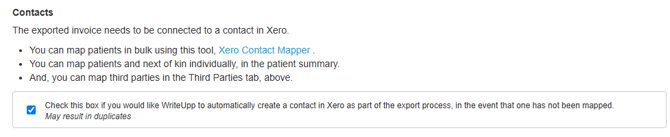
This allows WriteUpp to create and map the contact automatically during the export, helping to avoid issues caused by missing contact mappings
How to enable automatic invoice exports
- Open the main menu in WriteUpp and navigate to Integrations & Add Ons → Xero → Configure.
- Scroll down to the Automatic invoice export section, located below Mapping.
- Enable Automatically send invoices to Xero when saved.
Once enabled, WriteUpp will automatically attempt to export eligible new invoices to your connected Xero account.
Please note: This setting is switched off by default, so you'll need to enable it if you'd like to use automatic exports.
How does automatic invoice exporting work?
When you create a new invoice in WriteUpp, the system checks whether it can be exported to Xero.
If your Xero connection and required mappings are in place, the invoice is automatically queued for export once it has been saved.
This works for invoices created through:
- WriteUpp, including group bookings.
- Online Booking, including Classic and Online Booking 2.0.
- Supported payment integrations, including Stripe and Square.
You don't need to do anything else to trigger the export! If you've enabled Xero export completed notifications, you'll be notified when the export succeeds.
What happens if an invoice can't be exported?
If an automatic invoice export fails, you'll receive a notification in WriteUpp, provided the relevant notifications are enabled. 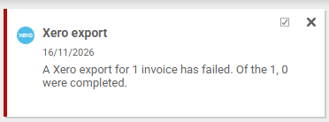
Your invoice will still be saved successfully in WriteUpp, so you won't lose any of your invoice information.
One reason an invoice might not be exported is that the required Xero mappings are missing or incorrect.
For example:
- Contact mapping is missing: WriteUpp can't identify the corresponding contact in Xero.
- VAT or tax mappings are missing: The invoice contains tax information that hasn't been mapped to the appropriate Xero tax rate.
- Sales account mappings are missing: WriteUpp can't identify which Xero sales account should be used.
How to resolve missing mappings
If an invoice hasn't been automatically exported, we recommend checking your Xero settings before trying again.
- Open your Xero integration settings in WriteUpp.
- Review the sales account settings under Mapping → Mapping Xero Accounts to WriteUpp
- Check that the relevant contacts are correctly mapped to Xero, including next-of-kin contacts and third parties → Mapping Xero Contacts to WriteUpp
- Check that relevant VAT/tax rates are correctly mapped to Xero → Mapping Xero Tax Rates to WriteUpp
- If any mappings are missing, update them to match the corresponding information in your Xero account.
- Once you've corrected the mappings, return to the affected invoice in WriteUpp and export it to Xero manually.
Important: Correcting a missing mapping doesn't automatically trigger another export for an invoice that was previously skipped. You'll need to export that invoice manually.
Any new invoices created after you've corrected the mappings should be eligible for automatic export, provided all other requirements are met.
How to check your Xero exports
You can use the Xero Export Log in WriteUpp to review your invoice exports and check whether they've been successful.
If an automatic export fails, you can check the Export Log for further information about the failure. You can find this log under the main menu → Finance → Xero: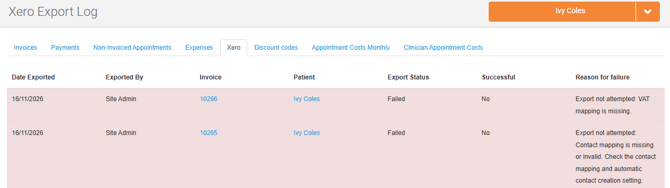
If an invoice wasn't eligible for automatic export because of missing mappings, it may not have been sent for export. In this case, check your mappings and export the invoice manually once they've been corrected.
You can also quickly check whether an invoice has been successfully exported to Xero by looking for the Xero icon alongside it in WriteUpp.
You'll find this icon in two places:
- Finance → Invoices: The Xero icon will appear alongside invoices that have been successfully exported.
- Patient Summary → Account tab: The Xero icon will also appear alongside successfully exported invoices in the patient's account.
Important things to know
- Only new invoices are included. Enabling automatic exports won't send invoices that were created before the setting was switched on.
- Required mappings must be configured. Invoices with missing required mappings won't be automatically exported.
- You can choose to create contacts automatically. If you wish to enable automatic invoice exports, we recommend turning on the automatic contact creation setting under Integrations & Add Ons → Xero → Configure.
- Your invoices will always be saved. If there's an issue with Xero, your invoice will still be created in WriteUpp.
- Manual exports are still available. If an invoice isn't automatically exported, you can correct the issue and export it manually.
- You can switch it off. If you no longer want to export invoices automatically, simply return to your Xero integration settings and disable the option.
Automatic invoice exports help keep your invoicing workflow running smoothly, with less manual work required to keep WriteUpp and Xero up to date.