
Once you've created your Outcome Measures, you can attach them to Numeric fields in assessment forms to automatically calculate and record scores such as GAD-7 pr PHQ-9.
Create or edit an assessment
- Go to Main Menu → Settings → Assessments.
- Create a new assessment form or edit an existing one.
- Add the fields required for your assessment using the steps below...
1. Add Single Choice Questions with Numeric Scores
For each scored question:
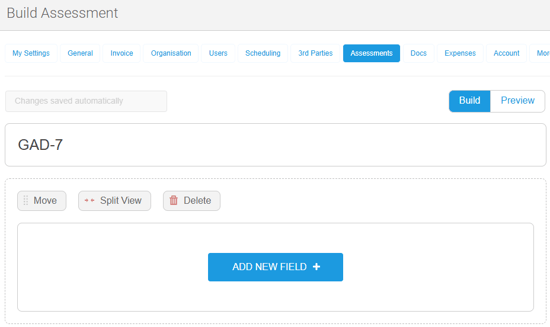
- Select your desired layout and click Add New Field.
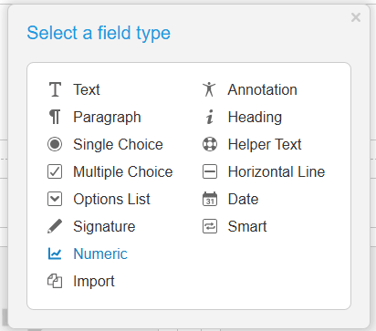
- Select Numeric as the field type.
- Enter a Field Name.
- Choose the Number format: Whole numbers or Decimals. Only select Decimals if your scores may include decimal values.
- Attach the field to the appropriate Outcome Measure.
Need to create fields for Outcome Measures? Click here to learn how. - Select Single Choice with Numeric Scores as the input type.
- Add your answer options and assign each one a numeric value.
- Choose the required field layout, horizontal or vertical.
For example, a GAD-7 question might be configured as: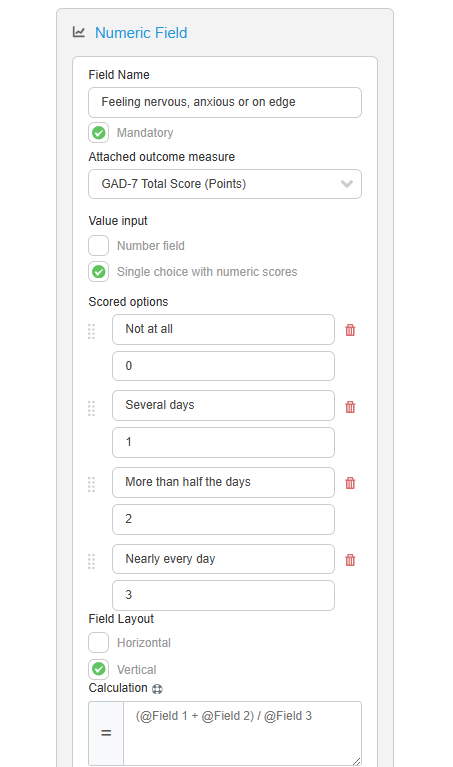
Repeat this process for each scored question in the assessment.
2. Add a calculated total field
Once you've added all of the scored questions, add another Numeric field below to calculate the overall score.
- Add a new Numeric field.
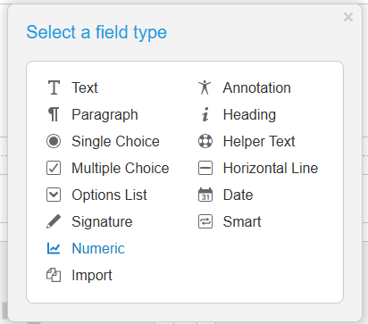
- Enter a name such as "Total Score".
- Set the Number format: Whole numbers or Decimals. Only select Decimals if your total may be a decimal value.
- Attach it to the appropriate Outcome Measure.
- Select Number Field as the input type.
- Enter the calculation formula, see below:
Creating a formula
Calculated fields use formulas to combine values from other fields.
Type @ to display a list of numeric fields already included in the assessment.
Select each field you want to include and use mathematical operators such as:
- + (add)
- - (subtract)
- × (multiply)
- ÷ (divide)
For a GAD-7 assessment, your formula might look similar to:
@Question1 + @Question2 + @Question3 + @Question4 + @Question5 + @Question6 + @Question7
For example, this may look like: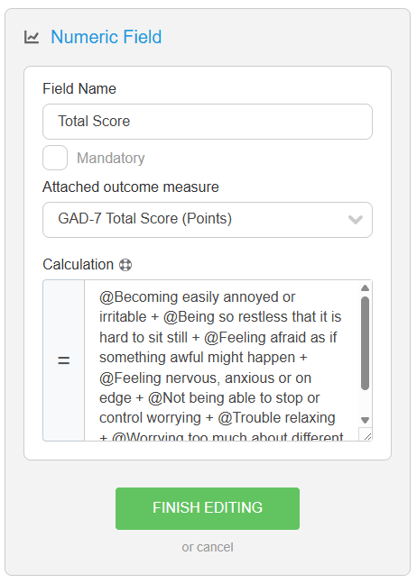
Example: Building a GAD-7 assessment
For each of the seven questions:
- Create a Numeric field and give it a name
- Select Single Choice with Numeric Scores.
- Add the following response options:
|
Response |
Score |
|
Not at all |
0 |
|
Several days |
1 |
|
More than half the days |
2 |
|
Nearly every day |
3 |
Then add a final Total Score numeric field and create a formula that adds together all seven question fields.
Step-by-step example of how to create an outcome measure - GAD-7
Why not try the new AI Chat Assistant when building your Outcome Measures forms? For example, simply ask it to create a GAD-7 form using the Numeric field type, and let AI do the hard work.
When a client or clinician then completes the assessment, the Total Score is calculated automatically, removing the need to calculate and enter the score manually (learn more).