
Built specifically for clinicians, Heidi captures your consultation in real time and turns it into clear, well-structured notes. From clinical summaries and SOAP notes to referrals and outcome letters, Heidi helps reduce admin time so you can focus on your client.
With the Heidi integration enabled in WriteUpp, the Heidi Widget is embedded directly into your site. This means you can access Heidi while writing notes, assessments or documents, without needing to leave WriteUpp. Once your consultation is complete, your documentation can be inserted straight into the client record in just a few clicks.
Before you begin
To use this integration, you’ll need:
- A Heidi subscription or trial on one of the following plans:
- Scribe Plus or Clinician (Individuals)
- Practice or Enterprise (Teams)
- The WriteUpp integration added to your Heidi subscription through Heidi’s EMR Integrations Marketplace
You can unlock the WriteUpp integration from Heidi’s integrations marketplace, starting from £5 a month for users on eligible individual plans. Alternatively, you’ll be prompted to complete this setup directly within the widget once logged in.
Note: Users on a paid Team plan must contact Heidi sales to enable the WriteUpp integration add-on. - Heidi login credentials for each user who wants to use the integration
If you don’t already have a Heidi account, you can create one the first time you open the widget, and even try the WriteUpp integration for free during a Heidi trial!
How to enable Heidi in WriteUpp
You must have the role of Site Administrator to enable the integration.
- In WriteUpp, go to Main Menu → Integrations & Add Ons
- Click Configure for Heidi
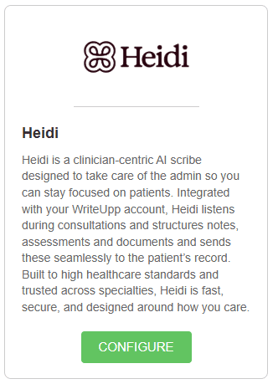
- Click Enable Heidi
Heidi will now be available to all users across your site. Each user must then sign into their own Heidi account through the Heidi widget in WriteUpp.
Signing into an existing Heidi account
If you already have a Heidi account, you can sign in through the Heidi Widget in WriteUpp.
- Open a new Note, Assessment or Document in WriteUpp
- Click the Heidi icon
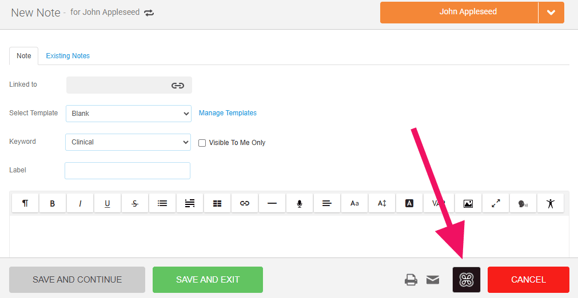
- Inside the widget, click Continue in a new window
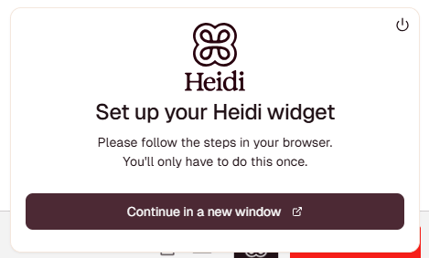
- A new tab will open where you can sign into your Heidi account
- Once linked, you can return to WriteUpp and you'll see that you are logged into Heidi within the widget. You may need to refresh the screen.
Note: If your Heidi account has not yet been fully configured for the integration, you’ll be prompted to complete the remaining setup steps after logging in.
Important: You must be on one of Heidi’s supported subscription plans and have access to the WriteUpp integration add-on.
Creating a new Heidi account through the widget
If you don’t already have a Heidi account, you can create one directly through the Heidi Widget.
- Open a new Note, Assessment or Document in WriteUpp
- Click the Heidi icon
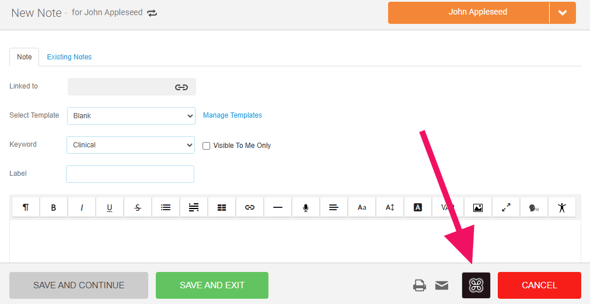
- Inside the widget, click Continue in a new window
- Enter your email address
- If the email address is not linked to an existing Heidi account, you’ll be prompted to create one
During sign-up, you can then:
- Start a free trial on one of Heidi’s supported plans
- Enable the WriteUpp integration add-on
- Click Try for free to use the integration during your Heidi trial period
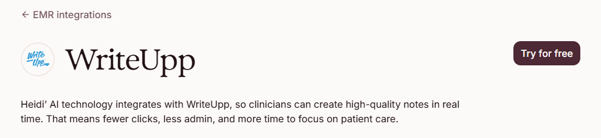
To make setup as simple as possible, activating the trial and enabling the WriteUpp integration can both be completed during the signup flow.
Using Heidi in WriteUpp
You can access Heidi while working in:
Once signed in and set up, you can begin recording consultations and generating documentation directly into WriteUpp. After your first login, you should not need to sign in again each time.
How to disable Heidi
If you’d like to remove access to Heidi for all users:
- Go to Main Menu → Integrations & Add Ons → Heidi → Configure
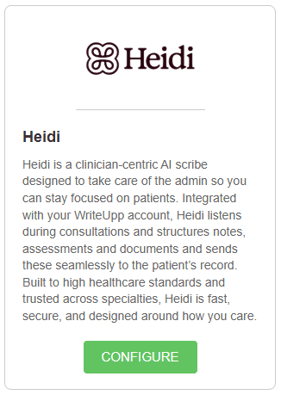
- Click Disable Heidi
Access to the Heidi icon will then be removed for all users on the site.
Need help?
If Heidi has been enabled but you cannot sign in or use the integration, first check that:
- You have an active Heidi subscription and are using the correct login details
- Your Heidi account is on one of the following supported plans:
- Scribe Plus or Clinician (Individuals)
- Practice or Enterprise (Teams)
- Your Heidi account includes access to the WriteUpp integration add-on
The WriteUpp integration can be enabled either through the Heidi Widget in WriteUpp or via Heidi’s EMR Integrations Marketplace.
If you experience issues within the Heidi Widget itself, such as signing in, session recording, generated outputs or widget functionality, please contact Heidi Customer Support directly. The Heidi Widget is managed by Heidi rather than WriteUpp, and we’re unable to troubleshoot issues outside of WriteUpp itself.