
With the Heidi integration enabled, Heidi can be used directly within documents in WriteUpp, allowing you to capture your consultation, generate structured clinical documentation, and push the content straight into the client record without leaving your WriteUpp site.
Before you begin
Before using Heidi in a document, please make sure Heidi has already been enabled for your site and that you have signed in and setup through the Heidi Widget.
If not, refer to this guide on enabling Heidi first.
How to use Heidi in a Document
- Select the correct Active Client in WriteUpp
- Go to Create → Document and select a template to use
- In the document screen, click the Heidi icon to open the widget.
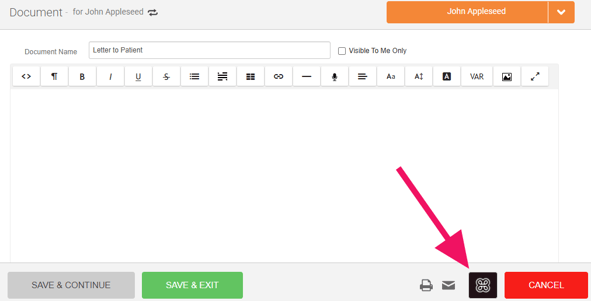
Note: At the top of the widget, check that you have the correct microphone selected for the recording. -
The widget will automatically use the default template set in your Heidi dashboard, but you can change this for the session if needed. You'll need to maximise the widget to do this.
When you’re ready, click Start Visit in the widget.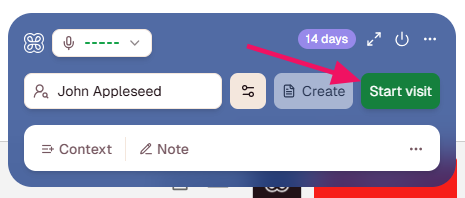
- Carry out your consultation as normal while Heidi is recording in the background
- When the session is complete, click End Session within the widget. You can also pause recording at any time, if needed.
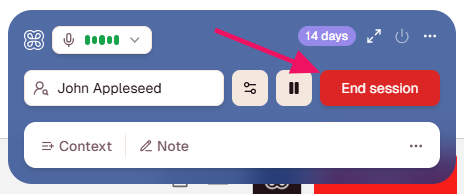
- Heidi will generate the content in the widget.
This may take a few minutes, so please do not close the widget or leave the page. - Maximise the widget if it isn't already, then review and edit the content of the document. You can also view the transcript.
At this stage, you can change the template within the widget if required, allowing you to generate different document formats from the transcript. - Once you are happy with the content, click Push note to insert it into the client document in WriteUpp
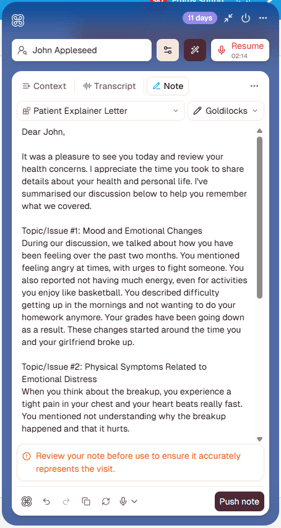
- Make any final edits in the document, then save it as normal.
Afterwards, the consultation will also appear in your Heidi account, where you can view the transcript and any generated outputs.
Important
We’d always recommend reviewing AI-generated content before saving, to ensure it accurately reflects your consultation and meets your clinical documentation standards.
If you experience any issues within the Heidi Widget itself, such as signing in, session recording, generated outputs, or widget functionality, please contact Heidi Customer Support directly for assistance. The Heidi Widget is managed by Heidi rather than WriteUpp, and we’re sorry, but we’re unable to help with issues outside of WriteUpp.