
Once you've created Group or Block bookings, you can then add and remove clients, as well as manage other functionality from the group session in the calendar.
Before you begin
Before managing group/block attendees, ensure that:
- A Group Appointment Type has been created.
- A Group or Block booking has been created in the calendar
Managing a group or a block session
Once a group or block session has been created, you can view and manage both details and attendees by opening the entry on your calendar.
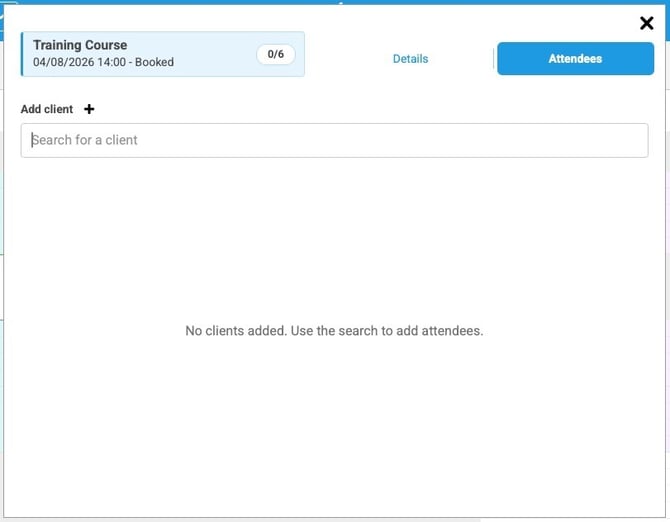
When a session is opened, it will default to the Attendees view. This will show you the number of clients booked vs the max clients allowed, any clients already booking onto the session and an option to view the details:
Details will show you information on the scheduled session such as location, recurrence and block length (if set):
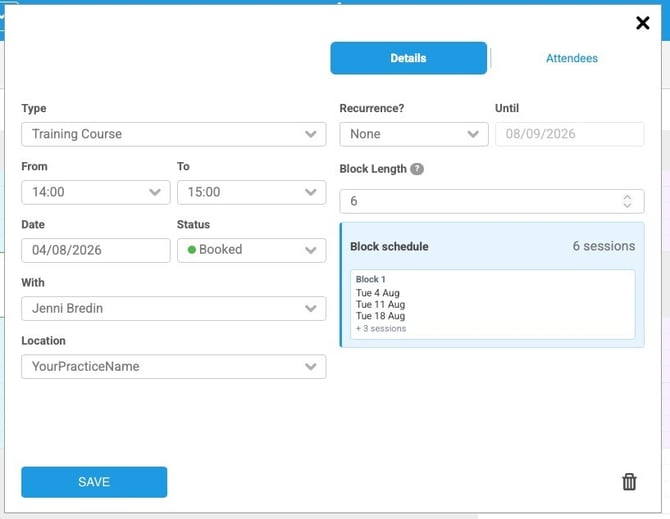
Note - the recurrence and block length of a group session can't be changed once scheduled. If you need to make any changes to these settings, the session can be deleted and recreated.
Adding and removing clients
To add a client to a group or block session:
- Locate the group session in the calendar and click on it to open it.
- Either search for an existing client, or click on Add client + to add someone new.
- Once a client has been added, a grid will populate containing their name, WUID and a status dropdown, allowing individual client attendance status to be recorded.
Important: When clients are added to a group session which has been set up as a block booking, they'll be added to every session in that block.
To remove a client from a group or block session:
- To retain a record of the appointment on a client record, you can change the status of their attendance to reflect their non-attendance, for example, by changing it to Cancelled:

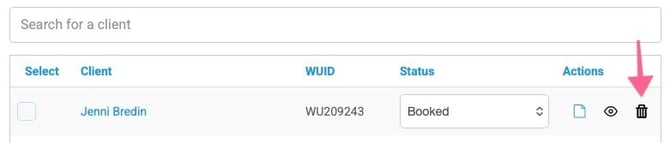
- Alternatively, clients can be deleted from a group session by using the bin icon alongside their name. This will remove the session from the appointment history on their client record:
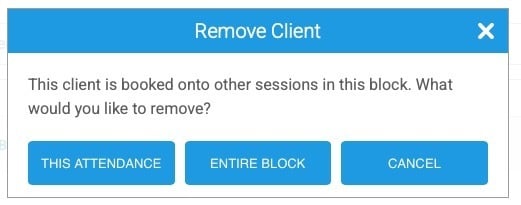
- For block bookings, you'll also be able to select whether to remove them from one session or all sessions:
Using the WriteUpp app?
Group bookings already scheduled in the calendar can be viewed in the WriteUpp app, but they cannot currently be created or managed from the app.
Other individual actions
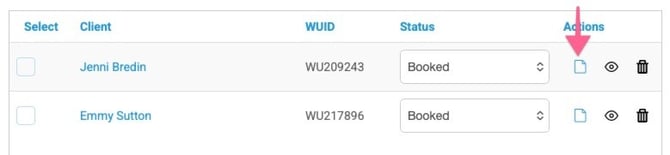
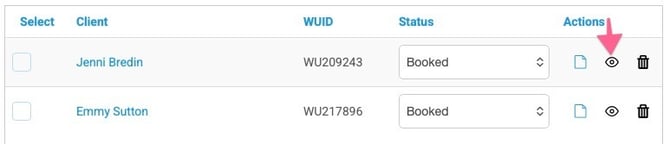
Once clients have been added to a group or block session, for each attendee, you can also:
Create an invoice:
and view the appointment history:
Group actions
In addition to individual controls, the Actions dropdown allows access to two new functions for group attendees, Generate invoice and Create group note. Use the boxes down the left hand side to select clients, and then open the dropdown to choose your action:
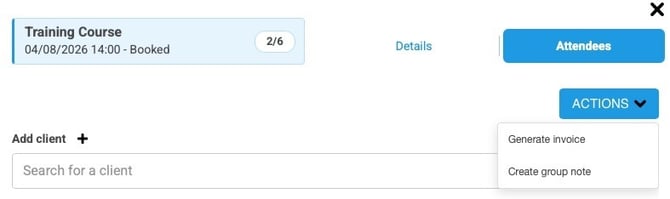
Generate invoice will create an individual invoice for each selected attendee, saved to their record.
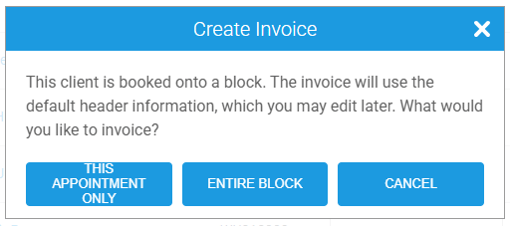
When generating an invoice for a Block Booking from the Actions menu, you can choose whether to invoice the selected client(s) for the individual session or the entire block. Selecting Entire block creates a single invoice for the selected client(s) that includes all sessions within the block booking.
Create group note allows a single group note to be written, which will then be saved to each clients record. Read more on that here.