
Group Appointment Types allow you to schedule appointments that can be attended by multiple patients at the same time. Before you can create a group session, you'll first need to configure an appointment type as a group appointment.
Creating a Group Appointment Type
- Go to Main Menu → Settings → Scheduling → Appointment Types.
Note: You must have the user role of Site Administrator to manage Appointment Types. - Create a new appointment type or edit an existing one.
- Locate the Group Appointment setting.
- Change the setting from No to Yes.
- Once enabled, a new field called Max Patients will appear:
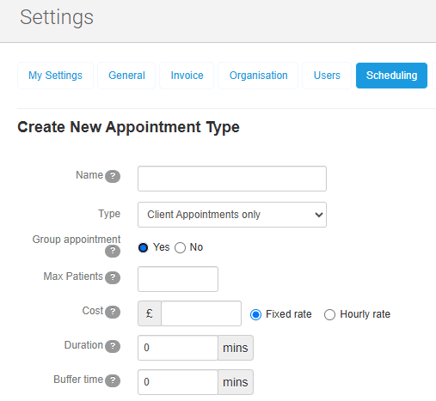
Setting the Maximum Number of Patients
Enter the maximum number of patients who can attend each group session created using this appointment type.
Please note:
- The value must be a whole number.
- The minimum capacity is 1 patient.
- The capacity you set will be used for every new group session created with this appointment type.
If you later change the capacity on the appointment type, it will only apply to new group sessions. Existing sessions will keep the capacity they were created with.
6. Once you've configured the rest of the appointment type, select Save.
Your appointment type will now be available when creating Group Appointments and will no longer appear in the standard appointment booking list used for one-to-one appointments.
Only appointment types marked as Group Appointment = Yes can be used when creating group sessions.
Video Group Appointments
Group appointment types can also be used for video consultations.
For video group appointments, the maximum number of patients is limited to 3 participants. If you enter a higher value, the capacity is reduced when the appointment is changed to a video type.
Next steps
You're now ready to book your first group session into the diary!