
If you have access to AI Scribe (via a free trial or paid licence), you can use it when creating a new client note in WriteUpp, to help you quickly generate written clinical documentation.
AI Scribe can be used in two ways: Dictation or Encounter, depending on whether you are documenting after a session or during a live appointment.
How to access AI Scribe
To use AI Scribe, the user must have a licence assigned (or a free trial). You can add AI Scribe licences to your subscription from the Account Details screen. You'll then need to assign them to users who require access (read more).
Each user receives a 4 hour free trial of AI Scribe, so you can try it out before committing! Click here to learn how to assign the free trial to users.
When creating a new note for a client, simply select the AI Scribe icon from the note toolbar to get started.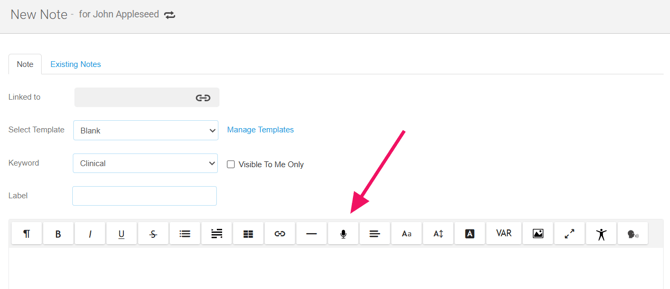
IMPORTANT: Enabling AI Scribe will upgrade your site to Redactor 3, which is required to use the feature. In WriteUpp, the Redactor is the text editor used when creating notes and documents. There are currently two versions: Redactor 2 and Redactor 3.
You’ll need to allow access to your device’s microphone to record sessions using AI Scribe.
Dictate a Note (post-session notes)
Dictation is designed for use after a session has finished, when you want to quickly turn spoken recollection into a written note.
To use Dictation when creating a new note:
- Go to Create → Note
- Click the AI Scribe icon in the redactor toolbar
If this is your first time using AI Scribe in WriteUpp, you will need to accept the Terms of Service before continuing. - Select Dictate a Note
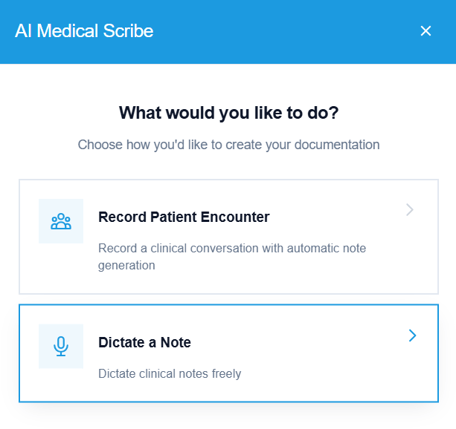
- Press the Record button and speak your note aloud
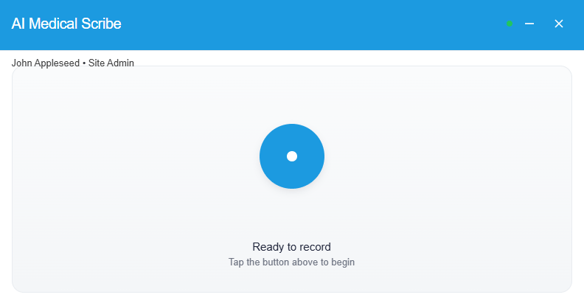
- Press Stop & Generate when you've finished
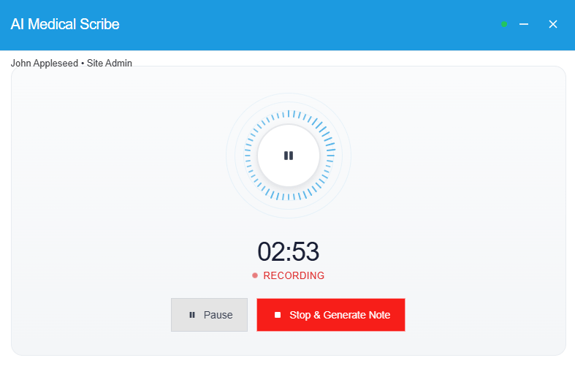
- You'll see the following modal while the audio is being uploaded, ready for transcribing
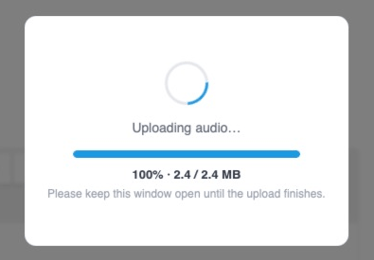
- AI Scribe will then transcribe your speech and tidy it up a little
WARNING: Do not navigate away from the notes screen until the audio has been uploaded and fully transcribed. If you leave the screen before AI Scribe has finished transcribing and generating the content, it will be lost and may not be recoverable. - Once generated, you can:
- Review the content in the AI Scribe modal
- Make any edits required - When you're happy, click Save and Finalise to insert it into your client note
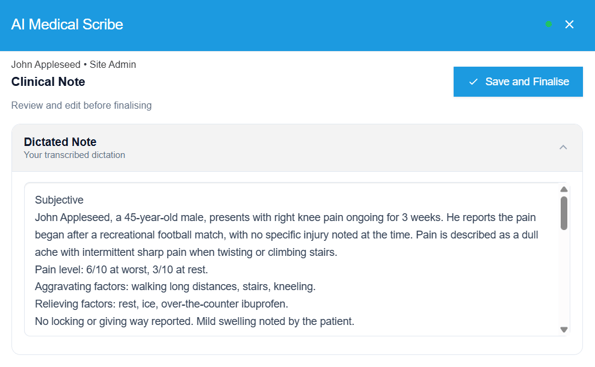
Important: You must click Save and Finalise in the AI Scribe modal to insert the generated content into the note in WriteUpp. If you close the modal or navigate away before doing so, the content may be lost.
Handy dictation voice commands:
| Spoken | Result |
| "period" | . |
| "comma" | , |
| "question mark" | ? |
| "exclamation point" | ! |
| "new line" | line break |
| "new paragraph" | paragraph break |
| "colon" | : |
| "semicolon" | ; |
| "open paran" | ( |
| "close paren" | ) |
| "two by three" | 2 x 3 (dimensions) |
| "one to two hundred" | 1 : 200 (ratios) |
Record Patient Encounter (live session notes)
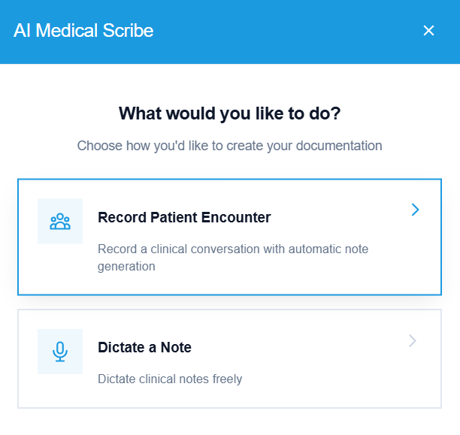
Encounter is designed for use during the client session and can capture a live conversation in real time.
It is able to:
- Pick up multiple speakers in a conversation
- Listen throughout the session and generate a note when stopped
- Structure content using clinical templates
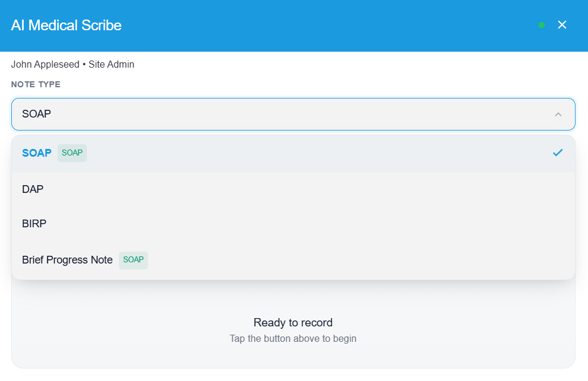
You can choose from predefined templates, including:
- DAP
- BIRP
- SOAP
- Brief Progress Note
To use Encounter when creating a new note:
- Go to Create → Note
- Click the AI Scribe icon in the redactor toolbar
If this is your first time using AI Scribe in WriteUpp, you will need to accept the Terms of Service before continuing. - Select Record Patient Encounter
- Choose a template
- Press the Record button at the start of the session
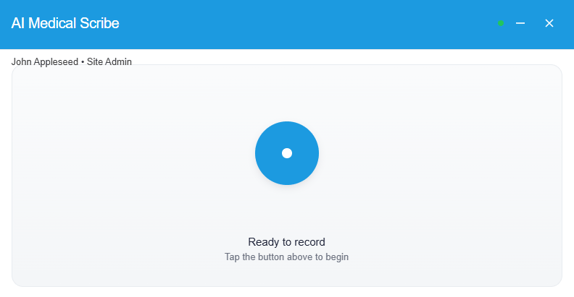
- Conduct your appointment as normal
- Press Stop & Generate when finished
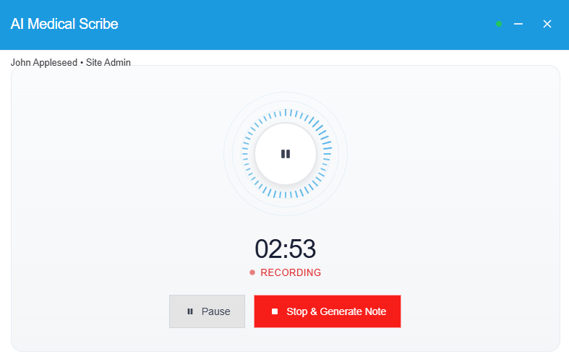
- You'll see the following modal while the audio is being uploaded, ready for transcribing
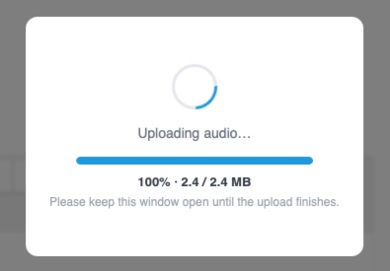
- Wait for it to generate
WARNING: Do not navigate away from the notes screen until the audio has been uploaded, fully transcribed and a note generated. If you leave the screen before AI Scribe has finished transcribing and generating the content, it will be lost and may not be recoverable. - Read over the generated note in the Scribe modal carefully and make any necessary changes
We recommend always reviewing the generated note carefully and making any necessary edits before saving. - Click Save and Finalise to insert it into your client note
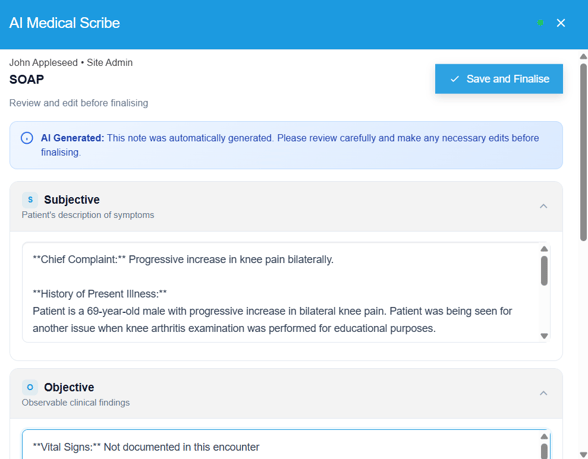
Important: You must click Save and Finalise in the AI Scribe modal to insert the generated content into the note in WriteUpp. If you close the modal or navigate away before doing so, the content may be lost.
Note: It may take a few minutes after pressing stop for AI Scribe to interpret the recording and generate your note. Please wait for it to complete before closing the modal or navigating away from the screen.
AI Scribe is designed to save time, but not replace clinical judgement. Always review the output to ensure accuracy before finalising your note.