
AI Scribe is now available in the WriteUpp App, allowing you to record consultations and generate clinical records without needing to use WriteUpp on a computer.
Whether you're working in the clinic, visiting clients or on the go, you can use AI Scribe to capture consultations, create notes, documents and assessments, and keep track of your recordings.
This guide explains how to get started and make the most of AI Scribe on your mobile device.
Before you get started
To use AI Scribe in the WriteUpp App, you'll need:
- AI Scribe enabled for your WriteUpp site, with an AI Scribe licence or free trial assigned to your user.
- The WriteUpp App installed on your iPhone or Android device.
- Microphone permissions enabled for the WriteUpp App.
If this is your first time using AI Scribe, you'll be asked to accept the terms and conditions before you can begin. If you've already accepted these in your WriteUpp site, you won't need to accept them again.
Starting a recording
- Open the WriteUpp App and navigate to the client you'd like to record a consultation for.
- Select AI Scribe from the main menu.
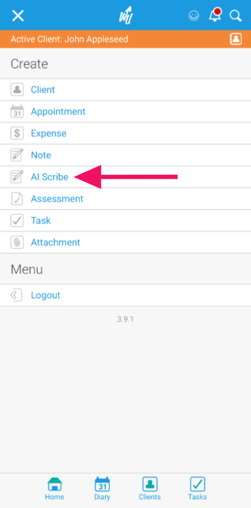
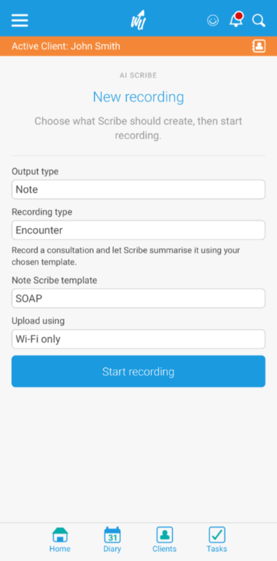
If you can't select AI Scribe, make sure you have an active client selected in the app. - Choose the type of clinical record you'd like to create: Note, Document or Assessment.
- If you're creating a note or document, you can also choose between Dictation and Encounter modes, just as you would in your WriteUpp site.
> Dictation - allows you to dictate content directly for your note or document.
> Encounter - allows AI Scribe to capture your consultation and generate structured content using your chosen template. - For an assessment or encounter, select the template you'd like AI Scribe to use.
-
Choose your upload preference - 'Wi-Fi only' or 'Wi-Fi and mobile data'
If you select Wi-Fi only, recordings will wait until your device is connected to Wi-Fi before uploading. -
When you're ready, select Start recording.
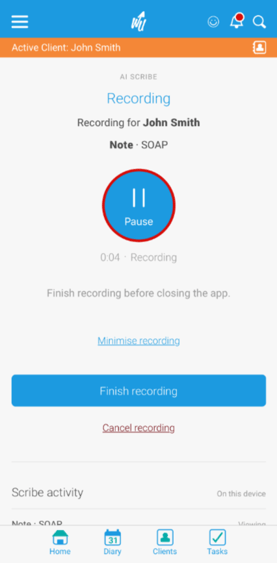
Once recording begins, you'll see a timer displaying the recording duration.
Read more about recording notes, documents and assessments using AI Scribe below:
Managing your recording
While recording, you have several options to help you manage your consultation.
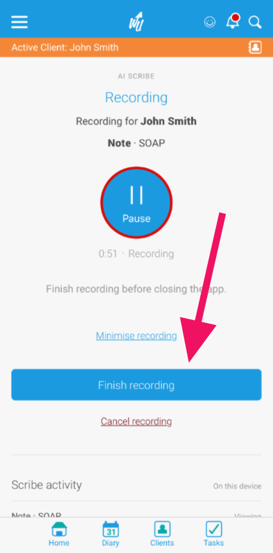
- Pause – Temporarily pause your recording.
- Resume – Continue recording after a pause.
- Minimise recording - Minimise AI Scribe and continue using other areas of the app while your recording continues.
- Finish recording – Stop recording and submit your audio for processing.
- Cancel recording – Cancel your recording. You'll be asked to confirm before it is removed.
Can I navigate around the app while recording?
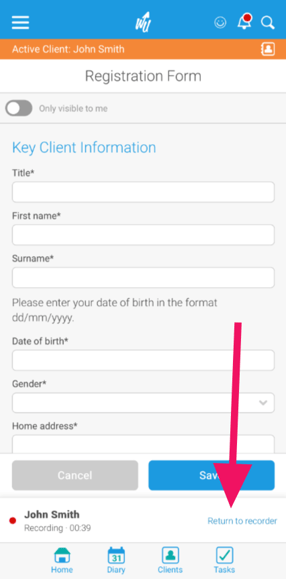
Yes! You can minimise AI Scribe and continue using other areas of the WriteUpp App while your recording continues.
This is particularly useful if you need to refer to existing client notes, view an assessment or check other information during your consultation.
A recording indicator remains visible, allowing you to return to AI Scribe whenever you need to pause or finish recording.
Finishing your recording
When your consultation is complete:
- Return to AI Scribe if you've minimised the recorder.
- Select Finish recording.
- Your audio will be uploaded for processing, either immediately or when your device has a suitable internet connection.
- AI Scribe will process your recording and generate your chosen note, document or assessment.
You don't need to remain on the recording screen while your audio is being processed. You can continue using the app and return to check its progress. Select Continue working to leave the AI Scribe screen.
Once processing is complete and the result has been saved, you can open it directly from the recording summary. You'll also receive a notification in the app to inform you that the output is ready.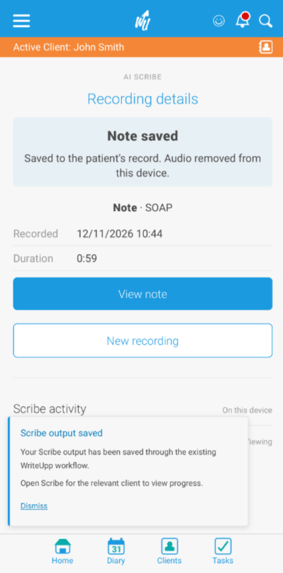
Your generated content will be saved against the client you selected when starting your recording. Always review the generated note, document or assessment and make any necessary changes before relying on it as part of your clinical record.
Once a recording has been successfully received for processing, its local audio copy is removed from your device.
Recording without an internet connection
AI Scribe also supports offline recording, so you can continue capturing consultations even when you don't have a reliable internet connection.
If you're offline when you finish recording, your audio will be stored on your device and queued for upload.
Once your device reconnects, the recording can be uploaded and processed.
Important: To record offline, you must first have opened AI Scribe for that client while connected to the internet during your current signed-in session. This allows the app to prepare the information needed for your recording.
Choosing your upload preferences
You can choose how your recordings are uploaded, depending on your internet connection and mobile data preferences.
The available options are:
- Wi-Fi only – Recordings will wait until your device is connected to Wi-Fi before uploading.
- Wi-Fi and mobile data – Recordings can upload using either connection.
Your selected preference is remembered, so you won't need to choose it every time you record.
Please note: The WriteUpp App must remain open while recordings are uploading.
Viewing previous recordings
You can view and manage previous recordings for a client from the AI Scribe section of the app under the main menu.
This displays information about your recordings, including:
- The date of the recording.
- The recording duration.
- Its current upload or processing status.
- Access to the generated note, document or assessment once saved.
Select a previous recording to view its details.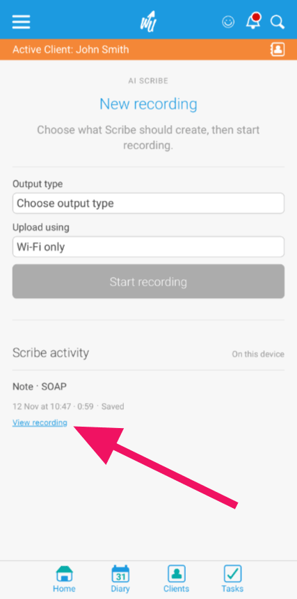
Understanding recording statuses
Your recordings may display different statuses depending on their progress:
- Queued – Your recording is waiting to upload.
- Uploading – Your audio is being uploaded for processing.
- Processing – AI Scribe is generating your chosen content.
- Saved – Your note, document or assessment has been created successfully.
- Failed – Something prevented the recording from uploading or processing successfully and may require another attempt.
- Cancelled – The recording has been cancelled.
You can return to Scribe activity at any time to check how your recordings are progressing.
Troubleshooting
I can't start a recording
Check that AI Scribe is enabled for your site and that an AI Scribe licence or free trial is assigned to your user.
You'll also need to make sure that microphone access is enabled for the WriteUpp App in your phone's settings.
My recording hasn't uploaded
Check that your device has an internet connection and review your selected upload preference.
If you've selected Wi-Fi only, your recording will remain queued until your device connects to Wi-Fi.
Make sure the WriteUpp App is open to allow the upload to complete.
I can't record offline
You'll need to open AI Scribe for the client while online before starting an offline recording. This must be done during your current signed-in session.
My recording is still processing
You can continue using the WriteUpp App while AI Scribe processes your recording.
Return to the AI Scribe section to check its status. Once the generated content has been saved, you'll be able to open it from the recording summary.
A few things to remember
- AI Scribe must be enabled for your site, and you must have an assigned licence or free trial.
- Recordings are linked to the client selected when you start.
- You can minimise the recorder to navigate around the app while recording.
- Offline recordings are queued until they can be uploaded.
- The app must remain open while uploading.
- Once a recording has been successfully received for processing, its local audio copy is removed from your device.
With AI Scribe in the WriteUpp App, you can capture consultations and create clinical records wherever you're working, giving you more flexibility throughout your day.