
AI Scribe: an optional AI-powered add-on
WriteUpp has its own AI-powered tool to help you create client notes, documents and assessments.
AI Scribe is an add-on to your subscription, available at £23.95 per user a month (excl. VAT). Once a user has a paid licence assigned (or a free trial), they can access AI Scribe directly within WriteUpp to support their documentation.
Every user gets a 4 hour free trial of AI Scribe. Assign the free trial to your user and try it out today!
Whether you want to record a live session and generate a structured, professional note using a template, or simply speak your notes after a session and have them converted into text, AI Scribe helps you work more efficiently.
Find out everything you need to know about this powerful add-on using the link below.
Heidi Integration
WriteUpp also integrates with Heidi, giving you another option for AI-powered clinical documentation directly within your WriteUpp site.
Built specifically for healthcare professionals, Heidi can capture consultations in real time and generate structured documentation such as clinical summaries, SOAP notes, referral letters and outcome notes. The Heidi Widget is embedded directly into WriteUpp, meaning you can use it while creating notes, assessments or documents without leaving the screen.
Once your consultation is complete, Heidi generates the transcript, and can create content from templates and send it straight into the client record in just a few clicks.
Learn how to enable the Heidi integration in WriteUpp.
Or, discover our partnership with Yung Sidekick, a powerful AI tool that captures your sessions, generates accurate transcripts, and creates insightful therapy notes and reports. As a WriteUpp user, you get an exclusive 15% discount on your Yung Sidekick subscription!
Other ways to dictate in WriteUpp
As long as the device you’re using has a microphone, you usually have the option to use inbuilt dictation tools through either your system or browser. This could save you a lot of time when it comes to writing up your notes in WriteUpp!
Please note, using dictation either through the inbuilt tools on your device or via a browser extension is not a WriteUpp feature. Therefore, we cannot provide support with any problems you might have with it.
If you’re on a Windows 10/11 computer:
- Make sure you’re in a text box in WriteUpp (you don’t have to use dictation just for notes, you can use it anywhere you have the option to type!).
- Then simply hold down the Windows key on your keyboard and press ‘H’.
- This will open the dictation toolbar and you can start speaking!
- Use the little microphone button that appears at the bottom of the screen to stop dictating or simply say 'stop dictation'. To start again, just press the microphone.
Find out more about how voice dictation works on Windows here.
On a Mac:
- If you don’t already have dictation switched on, go to System Preferences -> Keyboard -> Dictation and select “On” next to Dictation:
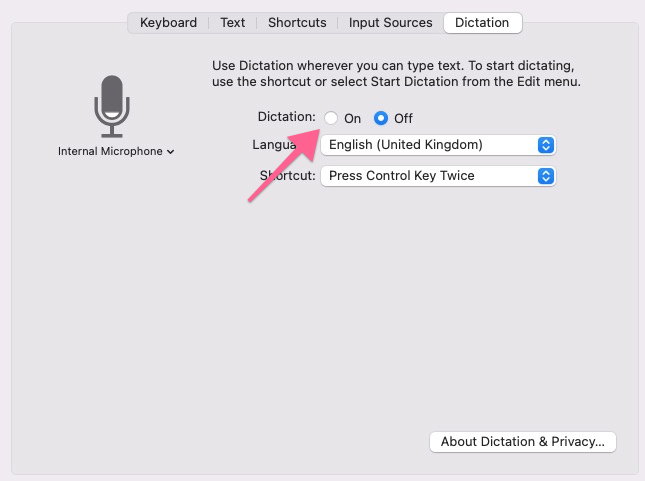
- Select your language, and also an optional shortcut to start dictation.
- Once you’ve done this, you’ll be able to dictate using both Safari and Chrome on a Mac.
- To start dictation, click into any text field that you’d usually type in and either use the shortcut you chose in settings, or go to Edit -> Start Dictation.
- You’ll then see a microphone icon appear within the field, with the text “Done” below it and can start your dictation
- To stop dictating at any time, click on Done below the microphone icon.
You can find out more about dictation through your Mac and how the information is handled by Apple here.
Voice dictation using a browser extension:
- An alternative is to download an extension to your browser, which allows you to use dictation directly through your browser rather than your operating system’s inbuilt function.
- Simply go to your browsers web store or add-ons home, like the Chrome webstore or Edge Add-ons and search ‘voice dictation’ or similar.
- You should see any related extensions appear and can choose from the options displayed.
- To use a browser dictation extension, follow the instructions related to that particular extension, as they may be controlled differently.
- Be aware that not all voice dictation extensions will be free for use in WriteUpp!
Please ensure you know how your dictations are processed and handled by your device or chosen extension before you begin.
Did you know? If you have Dragon NaturallySpeaking dictation software then you can use this to dictate in WriteUpp too!.