
We're excited to bring you another round of updates designed to make WriteUpp more personal, flexible and easier to use.
This release introduces exciting new branding options and Dark Mode for Online Booking 2.0 and the Client Portal, giving you more control over your clients' experience. We've also added greater flexibility with time formats and booking availability, alongside improvements to two-factor authentication, expenses, diary bookings and more.
Plus, we've been busy behind the scenes fixing bugs and making everything run more smoothly.
Read on to discover what's new in WriteUpp 2.18.4.
New Features
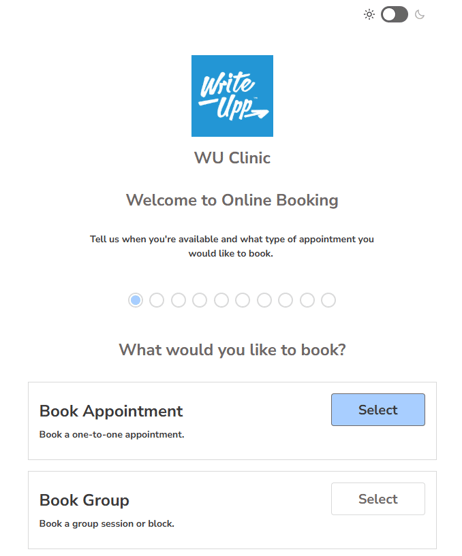
New: Make Online Booking and the Client Portal your own
Your practice is unique, and now your Online Booking and Client Portal pages can be too! We're excited to introduce new customisation options, giving you more control over how your practice looks and feels to your clients.
With our new Branding settings, you can create a more personalised, professional experience that reflects your practice's identity.
Here's what you can customise:
- Your brand colours – Choose any colour to match your practice's branding, automatically applied to buttons, links and highlighted elements.
- Your typography – Choose from four styles: WriteUpp, Contemporary, Friendly or Classic.
- Your welcome messages – Add a personal touch with different welcome messages for Online Booking and the Client Portal.
- Light and dark mode – Give clients the option to switch between light and dark mode for a more comfortable experience.
- Live previews – See your changes before saving, with previews for Online Booking, the Client Portal, mobile devices and dark mode.
Your chosen colours, typography and practice logo will automatically apply to both Online Booking 2.0 and the Client Portal, creating a consistent experience for your clients. If you've embedded Online Booking 2.0 on your website, your new branding will appear there too.
Note: As part of our branding updates, the Client Portal now displays your organisation's name and logo at the top of the page, creating a more personalised experience for your clients. You can also add an optional welcome message to greet clients when they access the portal.
Ready to make it yours?
As a Site Administrator, head to:
Main Menu → Integrations & Add Ons → Online Booking → Configure → Branding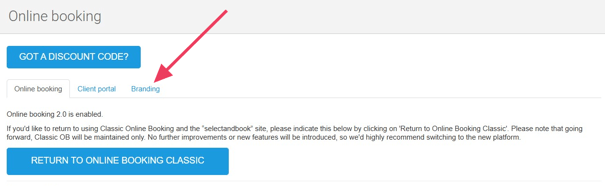
Experiment with different colours, styles and welcome messages using the live preview, then simply click Save Branding when you're happy with the result.
There's no need to change anything if you love the current WriteUpp look, and you can update your branding at any time!
→How do I customise the branding of my Online Booking and Client Portal pages?
Please note: These new branding options are exclusive to Online Booking 2.0 and the Client Portal. If you're still using Classic Online Booking, why not make the switch? Online Booking 2.0 offers a range of improved features and a better booking experience for your clients. Find out how to make the switch here.
Introducing Dark Mode for Online Booking and Client Portal
We've introduced Dark Mode to Online Booking 2.0 and the Client Portal, giving your clients a more comfortable viewing experience, especially in low-light environments.
Clients can use the theme switcher at the top of the page to choose their preferred viewing mode, with their selection remembered for future visits on the same device.
Dark Mode works seamlessly with your practice's existing branding, keeping your chosen brand colours and logo consistent across both themes.
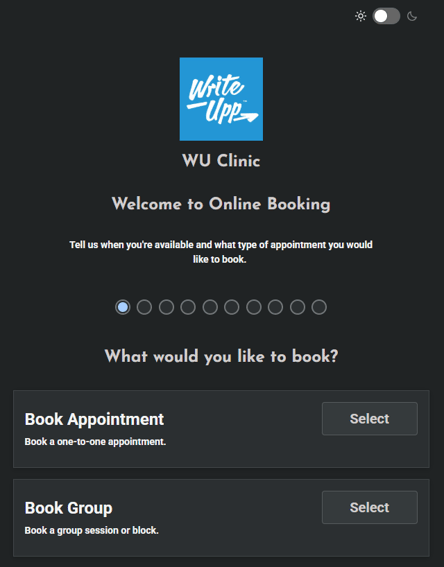
The theme switcher is enabled by default, but you can choose to hide it if you'd prefer.
To manage this setting, go to Main Menu → Integrations & Add Ons → Online Booking → Configure → Branding.

Your chosen setting applies to both Online Booking 2.0 and the Client Portal.
Improvements
Choose between 12-hour and 24-hour time formats
You can now choose to display times in 12-hour (4:00 PM) or 24-hour (16:00) format across WriteUpp, including the Diary, Online Booking, Client Portal and appointment messages.
US and Canadian sites will default to 12-hour time, while other regions will continue using 24-hour time.
Site Administrators can change this at any time under the Main Menu → Settings → General → Time format.
→How do I change the date and time formats in WriteUpp?
Improved email verification for two-factor authentication (2FA)
We've made it easier to check and manage your email verification status. Under Settings → My Settings, you can now see whether your email address is verified and resend a verification code if needed.
If you use email 2FA and your email address becomes unverified, for example after updating it in WriteUpp, you can now resend a verification code directly from the 2FA login screen. Once your email address is verified, you'll be able to receive your 2FA login code at your updated email address.
New Two-Week Booking Availability Option
We've added a new 'Two Weeks' option to the Online Booking availability settings, giving you more flexibility over how far in advance clients can book appointments.
You can now limit bookings to the next two weeks, alongside the existing monthly options. This also applies to Group Bookings and appointment rescheduling through the Client Portal.
To update your booking availability, go to Main Menu → Integrations & Add Ons → Online Booking → Configure and select 'Two Weeks' from the Limit for bookings dropdown.
Send emails directly from Client Lists
You can now start an email directly from any client list in WriteUpp!
Simply select 'Send Email' from the client's three-dot menu to open the email screen with that client selected, ready for you to choose a recipient and compose your message.
Privileged Users submitting invoices to Healthcode
We’ve improved the Healthcode integration so Privileged Users can now submit eligible invoices to Healthcode, rather than this option being limited to Site Administrators.
If Healthcode is enabled for your site, Privileged Users will now see the ‘Send to Healthcode’ icon on unpaid invoices linked to a third party, allowing them to complete the ‘Healthcode Link’ screen and submit.
There’s no change to Site Admin access, and Regular and Restricted Users will continue to be unable to access this feature.
New Date Column on the Expenses List
We’ve added a new Date column to the Expenses list under Finance, making it easier to see when each expense was recorded. Dates are displayed in your chosen date format.
We've also updated expense exports in both formats to use your selected date format, ensuring dates are displayed consistently across WriteUpp and your exported files.
Sort your Expenses report with ease
You can now click the blue column headers in Finance → Expenses to sort your expenses by date, item, client name or amount, including tax and totals.
Click again to reverse the order. Your selected sorting is also applied to Excel and CSV exports.
Improved permissions for message and note templates
Privileged, Regular and Restricted users can now only edit or delete templates they've created themselves. This includes message templates used for standalone messages and emails relating to notes and invoices etc, as well as note templates such as SOAP notes.
Site Administrators can continue to edit or delete any template, regardless of who created it.
Assign User Groups when inviting new users
We've added a new User Groups dropdown to the Invite New User screen, making it easier to organise your team from the outset.
You can now assign new users to an existing User Group when sending their invitation. User Groups allow multiple team members to share responsibility for a client, making it easier to manage clients who are supported by more than one practitioner.
Improved conflict checks for recurring appointments and Group Bookings
We've improved diary conflict checks to help prevent double bookings. When creating recurring standard appointments or recurring Group Bookings, any overlaps with existing appointments, Group Bookings or unavailable time will now be highlighted in the conflict modal, allowing you to review potential conflicts before confirming your booking.
We've also applied this conflict handling for block bookings. Note: If a session within a block has a conflict, all sessions in that block must be selected or deselected together, ensuring the block is booked as a whole.
Improved reliability of account and login emails
Two-factor authentication (2FA) codes, and user invitation and reactivation emails are now always sent through the WriteUpp Email Server, even if your site uses Gmail or Microsoft 365 for sending emails.
This ensures users can continue to receive these important emails if their connected email account becomes disconnected or loses authentication.
Video Consultations - Improved browser and device compatibility checks
We’ve improved Video Consultations to detect when a browser or device doesn't support audio or video, displaying a clear warning before joining the call and advising users to try another browser or device.
Updated: CloudRx is now Molecule CloudRx
CloudRx has rebranded to Molecule CloudRx. We've updated the name, logos and wording throughout WriteUpp, including Integrations & Add-ons, prescribing screens and patient records.
Bug Fixes
- Fixed an issue where switching clients when sending a consent email didn't update the recipient's email address, ensuring the correct client's email address is used.
- Fixed an issue where a video consultation could incorrectly display a “Video failed. Click here to restart” warning, even when the camera was working correctly.
- Added a clearer error message when a camera issue prevents video from working during a consultation, advising users to close their browser and rejoin the call to resolve the issue.
- Fixed an issue where logos were not displaying on older invoices when sent as email attachments.
- Fixed an issue where merging patients could create an incorrect or duplicate deletion entry in the Security Log. The log now correctly records the merged patient, including the winning patient's reference and the user who performed the merge.
- Added guidance to the help icon beside the ‘Does it mean the client has arrived?’ setting under Appointment Statuses. The help text now explains how this setting triggers appointment arrival notifications.
- Fixed an issue preventing users with email-only two-factor authentication (2FA) from accessing Classic Online Booking admin. Users can now receive verification codes by email, with automatic sending based on their 2FA preferences.
- Fixed an issue where resetting a user's 2FA didn't immediately update their status on the Users page. The 2FA column now changes from "Yes" to "No" straight away, without needing to refresh the page, and a success message confirms the reset has been completed.
-
Fixed an issue where users could be unable to log in to the WriteUpp App with two-factor authentication (2FA) enabled if their password contained certain special characters.
- Non-client appointments no longer appear in the Desktop dashboard or WriteUpp app activity feeds, preventing errors when selecting these entries. These appointments remain accessible in the diary.
- We've fixed several timezone-related issues that could cause invoice and payment dates to display incorrectly in the Finance views, sometimes showing a day earlier than expected. Invoice Date, Due Date and Paid Date now display correctly across Finance → Invoices, Finance → Payments and the Clinician Appointment Costs report, including CSV and Excel exports, regardless of timezone.
- Fixed an issue where Video Scribe could attempt to process an invalid Zoom transcript, preventing a note from being created. Invalid transcripts are now detected and safely rejected before processing.
- Fixed an issue in the WriteUpp App where recognised devices could bypass two-factor authentication (2FA), even when “Force on login” was enabled. Users will now be required to complete 2FA every time they sign into the app when this setting is enabled, regardless of whether their device is recognised.
- We've made further improvements to ensure dates are displayed consistently across WriteUpp, using your site's selected date format (DD/MM/YYYY or MM/DD/YYYY).