
The Client Portal allows your existing clients to securely view and manage their appointments online without needing to contact your practice directly. Through the portal, clients can:
- View upcoming appointments
- View previous appointments
- Change appointment dates and times (if enabled)
- Cancel appointments (if enabled)
- Leave an optional message when changing or cancelling an appointment
The Client Portal is designed to give clients more flexibility while helping reduce admin time for your practice. It works alongside WriteUpp’s appointment scheduling and communication features, allowing clients to manage appointments using secure links sent via email or SMS.
Important:
-
The Client Portal is included with the Online Booking add-on.
-
It is not supported on the Classic Online Booking system, so you’ll need to switch to Online Booking 2.0 before you can use the Client Portal.
How Clients Access the Client Portal
Clients can access the Client Portal in two ways:
1. Appointment-specific magic links
You can include a secure Client Portal link in appointment confirmations, reminders or update communications using the Next appt. link or Next appt. URL variables within appointment communication templates.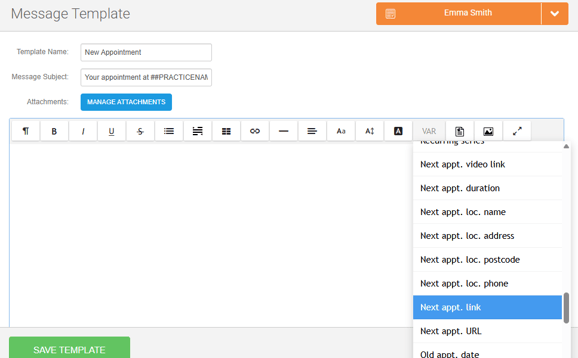
These links:
- Allow the client to authenticate themselves using their Date of Birth and Postcode
- Take the client directly to the appointment linked to that communication
- Allow them to view, change, or cancel that specific appointment only
Note: These links do not allow access to any other appointments for security reasons.
How to add the Client Portal magic link to appointment communications
2. Full Patient Portal access
Clients can also log into the full Portal to:
- View all appointments linked to their account
- Manage eligible upcoming appointments online
- View previous appointments
You can find the link to your Client Portal under Integrations & Add Ons → Online Booking → Configure → Client Portal tab.
After following this link to your portal, clients are required to enter their email address or mobile number to receive a magic link.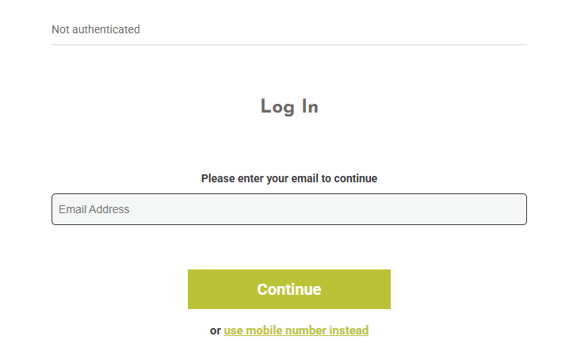
They can then use this magic link they receive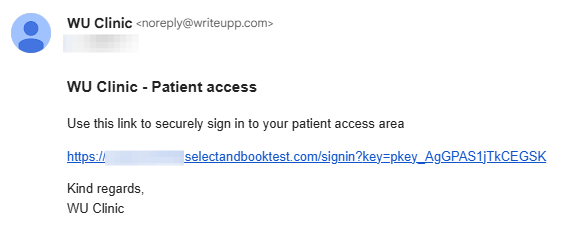 To continue logging in by verifying their identity using:
- Date of Birth
- Postcode
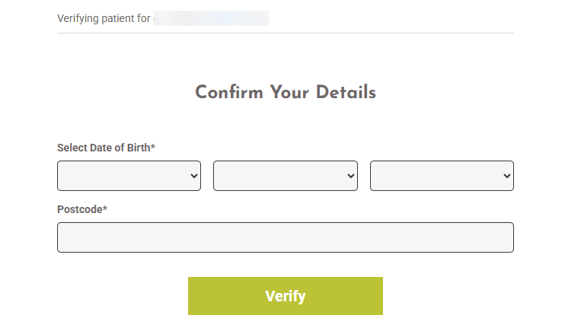
Important: Clients will not be able to access the Client Portal unless both a Date of Birth and postcode have been entered on their record in WriteUpp. This authentication step helps keep appointment information secure.
If either detail is missing, the client will be shown a message on the authentication screen and asked to contact the clinic. Once both their Date of Birth and postcode have been added to their record, they’ll be able to authenticate and access the Client Portal.
How Clients Authenticate via the Client Portal
What Clients Can Manage Online
Depending on how you have configured the Clients Portal, clients will be able to...
1. Change appointments
Clients can reschedule appointments by selecting a new available date and time online. Appointment changes must be enabled, and the appointment must still be within your configured edit window.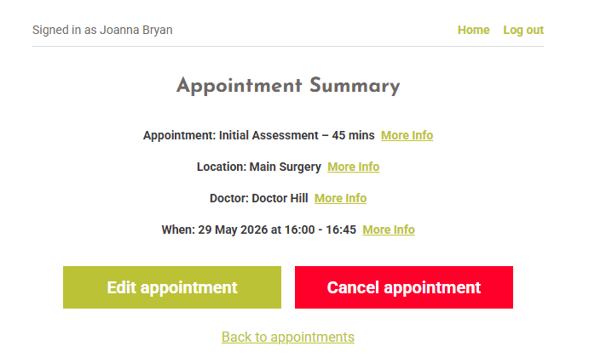 Clients can change:
- Appointment date
- Appointment time
How to Change an Appointment in the Client Portal
Clients cannot change:
- Clinician
- Location
- Appointment type
Availability for rebooking is controlled by your Online Booking 2.0 availability settings and your working or timetabled hours.
You can read more about configuring the Client Portal here.
2. Cancel appointments
Clients can cancel appointments directly through the portal if cancellations are enabled for the appointment and are still within your configured cancellation window.
How to Cancel an Appointment in the Client Portal
You can configure:
- How close to an appointment clients can cancel online
- Which appointment status should be applied after cancellation
- Cancellation policy wording shown to clients before confirming the cancellation
You can configure you Client Portal settings under Integrations & Add-ons → Online Booking → Configure → Client Portal. 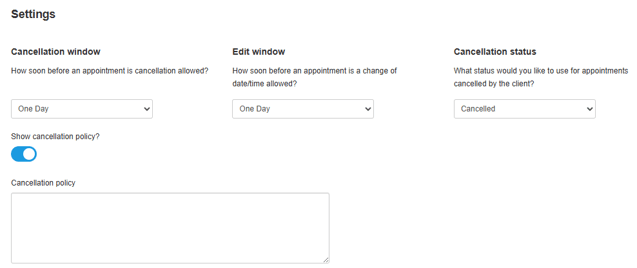
Notifications Within WriteUpp
When a client changes or cancels an appointment through the Client Portal, the user the appointment was with will receive a notification in WriteUpp, so they are aware of the update.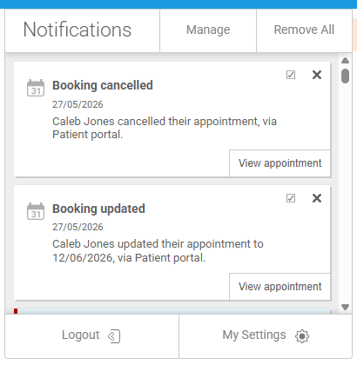
You can also set up email notifications for users to alert them when a client changes or cancels an appointment via the Client Portal. These settings can be found under Main Menu → Settings → Users → Edit Profile.
Client Messages
If the client leaves a message while changing or cancelling their appointment, this message is stored within WriteUpp under the client's Messages tab.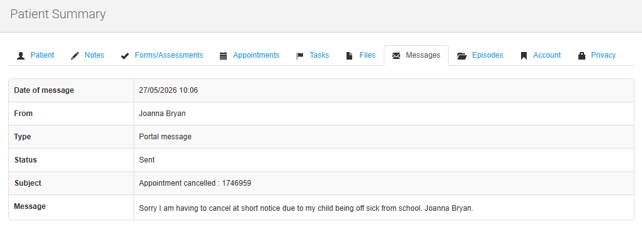
You can view these messages by:
- Opening the Appointment Details and clicking the message link within the Appointment History log
- Viewing the message under the Messages tab on the client record
This allows clinicians to see any explanation or additional information provided by the client when managing their appointment online.
Relationship with Online Booking 2.0
The Client Portal works independently from Online Booking 2.0, meaning you can configure them separately depending on how your practice operates.
You can disable one feature while keeping the other enabled.
For example:
- You can allow existing clients to manage appointments online without opening online booking to new clients (Client Portal ON/Online Booking OFF)
- You can allow new online bookings, but prevent clients from editing existing appointments (Client Portal OFF/Online Booking ON)
- You can use Online Booking and the Client Portal together
Note: To allow clients to change appointments via the Client Portal, the user the appointment is with must be available in Online Booking 2.0, even if Online Booking is disabled.
Please note:
- The Client Portal is included with the Online Booking 2.0 add-on, but Online Booking can be disabled if you only wish to use the Client Portal.
- The Client Portal is not supported with Classic Online Booking
You can read more about configuring the Client Portal here.
Appointment Update Restrictions
You can control:
- How soon before an appointment clients can make changes
- How soon before an appointment clients can cancel
There are separate settings for the 'Cancellation window' and 'Edit window'. For example, if you wanted to allow appointment changes up to 24 hours before the appointment start time, while preventing any cancellations online, you would set that up like this: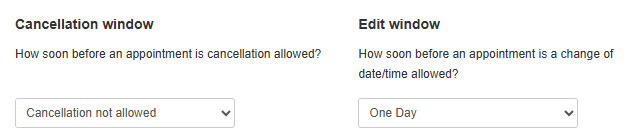
You can configure you Client Portal settings under Integrations & Add-ons → Online Booking → Configure → Client Portal.
Payments and Refunds
If online payments are enabled for your site, clients may have already paid for appointments before cancelling.
Currently, refunds are not processed automatically through the Client Portal.
Your practice will receive notification of the cancellation in WriteUpp. Refunds can then be manually processed in line with your cancellation policy.We’ll continue to add new features and improvements to the Client Portal over time, so keep an eye out for future updates!
More articles